How to Create Claude Code Skills: Step-by-Step Guide
In this article
- What is a Claude Code skill?
- How to create your first Claude Code skill
- Skill structure best practices
- Examples
- name: deep-research description: Research a topic thoroughly context: fork agent: Explore
- name: pr-summary description: Summarize changes in a pull request context: fork agent: Explore allowed-tools: Bash(gh *)
- Pull request context
- name: react-patterns description: React component patterns used in this codebase
- Component structure
- Example
- name: release description: Release a new version to production disable-model-invocation: true
- name: security-audit description: Audit code for security vulnerabilities context: fork agent: Explore
Creating a Claude Code skill means building a reusable capability that extends Claude's toolkit. Every skill is a directory with a SKILL.md file containing YAML frontmatter (metadata) and markdown instructions. Claude discovers skills automatically and invokes them when relevant to your task, or you can trigger them directly with a slash command like /explain-code. Unlike one-off prompts, skills persist across sessions and eliminate repetition—build once, use everywhere.
Who it's for: Developers who want to package workflows, teaching patterns, and domain knowledge into reusable tools that make Claude smarter about your specific codebase or process.
Key trade-offs: Setting up a skill takes a few minutes, but the payoff multiplies with use. Simple inline instructions work for one-off tasks; skills win when you need the same guidance repeatedly.
Quick facts:
- Skills are available in Claude Code (filesystem-based), Claude.ai (uploaded as zip), and the Claude API
- Custom skills require a Pro, Max, Team, or Enterprise plan with code execution enabled
- Skills can bundle supporting files (templates, scripts, reference docs) without consuming context until needed
What is a Claude Code skill?
A skill is a modular package of instructions, metadata, and optional resources (scripts, templates, documentation) that gives Claude domain-specific expertise. Think of it like an onboarding guide for a new team member—structured, reusable, and loaded progressively as needed.
The core structure is minimal. Every skill requires a directory with a SKILL.md file. That file contains two parts: YAML frontmatter (between --- markers) that tells Claude what the skill does and when to use it, and markdown content with instructions Claude follows.
When you invoke a skill—either by typing /skill-name or by asking Claude something that matches the skill's description—Claude reads the SKILL.md file and uses its instructions to complete your task. If the skill references supporting files like reference.md or a Python script, Claude only loads those files when they're relevant, keeping context clean and token usage efficient.
How to create your first Claude Code skill
Step 1: Create the skill directory
Skills live in specific locations depending on their scope. Personal skills work across all your projects; project skills apply only to one codebase.
For personal skills:
mkdir -p ~/.claude/skills/your-skill-name
For project-specific skills:
mkdir -p .claude/skills/your-skill-name
Replace your-skill-name with a lowercase name using only letters, numbers, and hyphens (max 64 characters). This name becomes the slash command: /your-skill-name.
Step 2: Write the SKILL.md file
Create SKILL.md inside your skill directory. Every skill file starts with YAML frontmatter and follows with markdown instructions.
Minimal example:
---
name: explain-code
description: Explains code using visual diagrams and analogies. Use when explaining how code works, teaching a codebase, or when the user asks "how does this work?"
---

When explaining code, always include:

1. **Start with an analogy**: Compare the code to something everyday
2. **Draw a diagram**: Use ASCII art to show flow or structure
3. **Walk through the code**: Explain step-by-step what happens
4. **Highlight a gotcha**: What's a common mistake?

Keep explanations conversational and visual.
Two fields in the frontmatter matter most:
name: The skill identifier (optional; defaults to directory name). Creates the slash command.description: What the skill does and when Claude should use it (optional but recommended). Be specific: Claude uses this to decide when to load the skill automatically.
The markdown content below the frontmatter is your instruction set. Keep it focused and scannable: use headers, bullet points, and code blocks. Short, clear instructions perform better than sprawling prose.
Step 3: Test your skill
Test in two ways: automatic invocation and manual triggering.
Automatic invocation: Ask Claude something that matches your skill's description:
How does this code work?
If your description is clear, Claude recognizes the match and loads the skill automatically.
Manual invocation: Use the slash command directly:
/explain-code src/auth/login.ts
Either way, Claude should follow the skill's instructions in its response.
Step 4: Add supporting files (optional)
For more complex skills, bundle additional files in the skill directory. Keep SKILL.md under 500 lines and move detailed reference material elsewhere.
explain-code/
├── SKILL.md (required, overview and instructions)
├── examples.md (usage examples, loaded when needed)
├── reference.md (detailed API docs, loaded as needed)
└── scripts/
    └── analyze.py (executable script, runs without loading into context)
Reference supporting files from SKILL.md so Claude knows when to load them:
## Additional resources

- For complete examples, see [examples.md](examples.md)
- For API details, see [reference.md](reference.md)
Claude reads these files only when your instructions mention them, keeping context efficient. Executable scripts (like analyze.py) run via bash; only their output enters the context window, not the script code itself.
Step 5: Control skill behavior with frontmatter
Beyond name and description, frontmatter fields let you control when and how Claude uses your skill.
Prevent automatic invocation:
---
name: deploy
description: Deploy the application to production
disable-model-invocation: true
---
Use disable-model-invocation: true for workflows with side effects (deployment, commits, sending messages). Only you can trigger these; Claude won't invoke them automatically.
Background knowledge only:
---
name: legacy-system-context
description: Explains how the old system works
user-invocable: false
---
Use user-invocable: false for reference material Claude should know but that doesn't make sense as a manual command. Claude loads it automatically when relevant; you can't invoke it with a slash command.
Pass arguments to skills:
---
name: fix-issue
description: Fix a GitHub issue by number
disable-model-invocation: true
---

Fix GitHub issue $ARGUMENTS following our standards:
1. Read the issue
2. Understand requirements
3. Implement the fix
When you run /fix-issue 123, Claude receives "Fix GitHub issue 123 following our standards..." The $ARGUMENTS placeholder gets replaced with whatever follows the skill name. You can also access individual arguments: $ARGUMENTS[0] or the shorthand $0.
Skill structure best practices
Strong skills share common patterns. Here's how to design them well.
Write clear, focused instructions
Your SKILL.md content should be procedural and scannable. Use markdown headers, bullet points, and examples. A skill teaching API conventions might look like:
# API Design Conventions

## REST naming
- Use nouns for resources: `/users`, `/posts`
- Use verbs for actions: `/send-email`, `/reset-password`

## Response format
All responses return JSON with `data` and `error` fields:
```json
{ "data": { /* response */ }, "error": null }
Examples
[Claude Code skills documentation](https://code.claude.com/docs/en/skills) recommends keeping instructions short and letting Claude load reference materials on demand.

### Create separate skills for different workflows

Don't combine unrelated capabilities into one skill. A single large skill is harder to trigger accurately, and Claude has trouble deciding when to use it. Instead, create focused skills:

- `explain-code` – Teaching and explanation
- `api-conventions` – API design patterns
- `deploy` – Production deployment workflow

Small, focused skills compose better and trigger more reliably.

### Use discovery-friendly descriptions

Claude matches your request against skill descriptions to decide whether to load a skill. A weak description like "Code helper" will miss many opportunities. A strong one is specific:

- ❌ Weak: "Helps with code"
- ✅ Strong: "Explains code using visual diagrams and analogies. Use when explaining how code works, teaching a codebase, or when the user asks 'how does this work?'"

Include the keywords you'd naturally use when asking for the skill's help.

## Advanced patterns

### Run skills in a subagent

Add `context: fork` to your frontmatter when you want a skill to run in isolation with its own context window. The skill content becomes the prompt for a specialized subagent. This is useful for research tasks where you don't want conversation history cluttering the analysis:
name: deep-research description: Research a topic thoroughly context: fork agent: Explore
Research $ARGUMENTS thoroughly:
- Find relevant files using Glob and Grep
- Read and analyze the code
- Summarize findings with specific file references
When invoked, this skill launches an isolated `Explore` agent to research the topic without conversation context interfering. [Agent Skills architecture documentation](https://platform.claude.com/docs/en/agents-and-tools/agent-skills/overview#where-skills-work) details how subagent contexts work.

### Inject dynamic context with bash commands

The `!`command`` syntax runs shell commands before the skill runs. The output replaces the placeholder, injecting live data into the prompt. This skill fetches and summarizes pull request changes:
name: pr-summary description: Summarize changes in a pull request context: fork agent: Explore allowed-tools: Bash(gh *)
Pull request context
- PR diff: !
gh pr diff - Comments: !
gh pr view --comments - Changed files: !
gh pr diff --name-only
Summarize this pull request...
Each `!`command`` executes immediately, and its output replaces the placeholder before Claude sees the prompt. Claude receives actual PR data, not the command itself. This pattern works for any dynamic context: database schemas, API responses, or configuration files.

### Bundle executable scripts

Skills can run Python, Bash, or any language in the skill's `scripts/` directory. Scripts run via bash; their output enters context, but the code itself doesn't consume tokens. This is more efficient than Claude generating equivalent code on the fly.

Example: A skill that validates form structures.
form-validator/ ├── SKILL.md └── scripts/ └── validate_form.py
In `SKILL.md`, reference the script:
When validating forms, run:
python ~/.claude/skills/form-validator/scripts/validate_form.py $ARGUMENTS
The script outputs validation results, which Claude interprets.
Claude runs the script when you ask for form validation. Only the output (like "✓ Form passed validation") consumes tokens—the script code doesn't load into context.

## Where skills work

Skills are available across Claude's products, but with different deployment scopes:

- **Claude Code:** Filesystem-based custom skills in `~/.claude/skills/` (personal) or `.claude/skills/` (project-based). Discover and use automatically or invoke with slash commands.
- **Claude.ai:** Upload custom skills as zip files via Settings > Features. Available to individuals; no org-wide admin distribution. Requires Pro, Max, Team, or Enterprise with code execution enabled.
- **Claude API:** Upload skills via the Skills API (`/v1/skills` endpoints). Shared organization-wide. Requires three beta headers: `code-execution-2025-08-25`, `skills-2025-10-02`, and `files-api-2025-04-14`.
- **Agent SDK:** Store skills in `.claude/skills/` and enable them in your configuration. Discovered automatically.

Custom skills in Claude Code don't sync to Claude.ai or the API—you manage them separately for each surface. [Claude Help Center on custom skill creation](https://support.claude.com/en/articles/12512198-how-to-create-custom-skills) covers upload workflows for Claude.ai and the API in detail.

## Common patterns and examples

### Teaching skills

Package your team's conventions, patterns, and best practices as reference skills. Claude loads them automatically when relevant, eliminating repetition:
name: react-patterns description: React component patterns used in this codebase
Component structure
- Use functional components with hooks
- Split components > 200 lines into smaller pieces
- Use context for theme and auth, props for everything else
Example
### Workflow automation

Create skills that bundle complex multi-step processes. Add `disable-model-invocation: true` so only you trigger them:
name: release description: Release a new version to production disable-model-invocation: true
Release version $ARGUMENTS:
- Update version in package.json
- Run full test suite
- Build the application
- Create a git tag
- Push to production
- Post release notes to Slack
### Specialized assistants

Use `context: fork` and custom agent types to create focused assistants that help with domain-specific tasks:
name: security-audit description: Audit code for security vulnerabilities context: fork agent: Explore
Security audit checklist:
- Check for hardcoded secrets
- Verify input sanitization
- Review authentication flows
- Look for SQL injection risks
[Agent Skills best practices](https://platform.claude.com/docs/en/agents-and-tools/agent-skills/best-practices) document provides additional guidance on real-world skill design.
## Monitor usage while developing skills
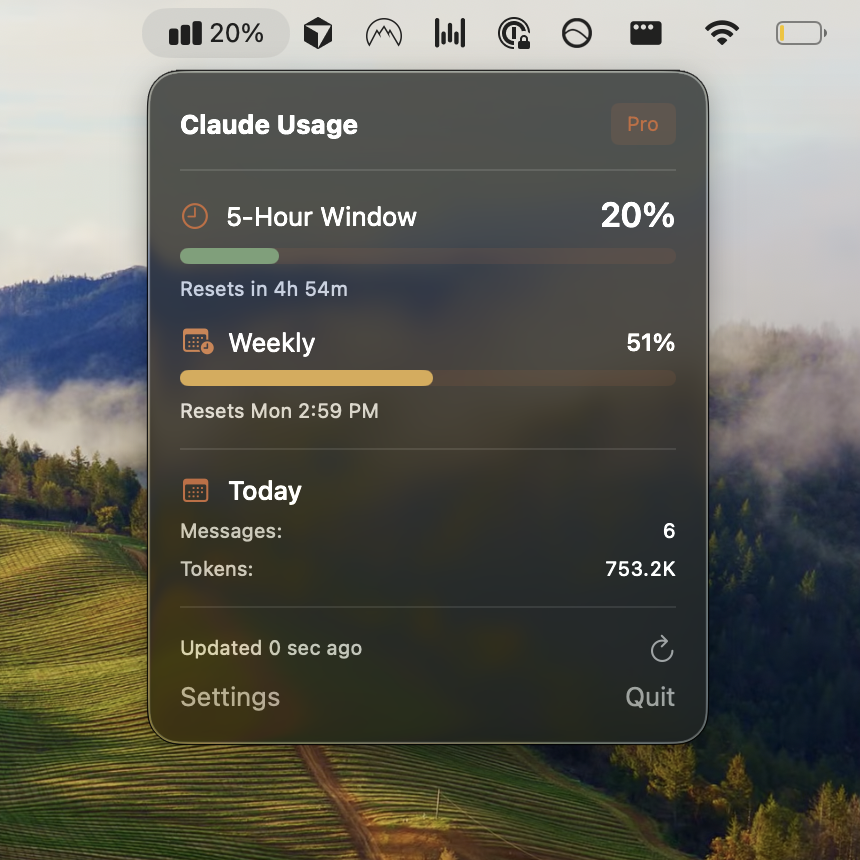
As you test and refine skills, keep track of your Claude Code usage. Check your balance using the `/usage` command in Claude Code, or visit [how to check Claude Code usage limits](https://usagebar.com/blog/how-do-i-check-my-claude-code-usage-limits) for other methods.
To stay aware of your usage in real time without interrupting your workflow, consider using [Usagebar](https://usagebar.com). It monitors your Claude Code balance in your macOS menu bar with smart notifications at 50%, 75%, and 90% usage, so you'll know exactly when your usage window resets. The tool uses secure macOS Keychain storage for credentials and offers a flexible pay-what-you-want model, with free access for students.
[Understanding when Claude Code usage resets](https://usagebar.com/blog/how-long-until-claude-code-resets) helps you plan skill development around your usage windows.
## Troubleshooting
### Skill not triggering automatically
If Claude doesn't use your skill when expected:
- Check that your description includes keywords users would naturally say
- Verify the skill appears in the skill list (ask "What skills are available?")
- Rephrase your request to match the description more closely
- Invoke it directly with `/skill-name` to test the content
### Skill triggers too often
If Claude invokes your skill when you don't want it to:
- Make the description more specific and narrow
- Add `disable-model-invocation: true` if you only want manual invocation
### Supporting files aren't loading
Claude only loads files your instructions reference. If you mention `[examples.md](examples.md)` but Claude doesn't seem to see it:
- Verify the file exists in the skill directory
- Make sure the path in your instructions is correct (relative to the skill directory)
- Ask Claude to load the file explicitly: "See the examples in examples.md"
## Key takeaways
1. **Every skill is a directory with `SKILL.md`:** Store personal skills in `~/.claude/skills/skill-name/` or project-specific skills in `.claude/skills/skill-name/`
2. **Frontmatter provides metadata:** The YAML block at the top (`name`, `description`) tells Claude what the skill does and when to use it
3. **Instructions are your content:** The markdown below the frontmatter contains the guidance Claude follows when the skill is invoked
4. **Keep skills focused:** One skill, one workflow. Multiple focused skills compose better than one large skill
5. **Support files stay efficient:** Bundle templates, scripts, and documentation in the skill directory; Claude loads them only when referenced
6. **Control invocation behavior:** Use `disable-model-invocation: true` for manual-only workflows, and `user-invocable: false` for background knowledge
7. **Test both ways:** Trigger skills automatically by matching the description, or manually with `/skill-name`
## Get started with Usagebar
As you create and refine Claude Code skills, knowing your usage balance prevents frustrating lockouts during critical work. [Usagebar](https://usagebar.com) gives you real-time visibility into your Claude Code usage right in your macOS menu bar.
Key features:
- Smart notifications at 50%, 75%, and 90% usage—never surprise yourself mid-session
- Instant download with flexible pay-what-you-want pricing
- Free access for students
- Secure Keychain storage for your credentials
- Know exactly when your usage window resets (see [when Claude Code usage resets](https://usagebar.com/blog/when-does-claude-code-usage-reset))
[Get Usagebar](https://usagebar.com) to stay in flow and eliminate context switching during skill development and testing.
## Sources
- [Claude Code Skills Documentation](https://code.claude.com/docs/en/skills)
- [Agent Skills Overview – Anthropic Platform](https://platform.claude.com/docs/en/agents-and-tools/agent-skills/overview)
- [How to Create Custom Skills – Claude Help Center](https://support.claude.com/en/articles/12512198-how-to-create-custom-skills)
- [Agent Skills Best Practices](https://platform.claude.com/docs/en/agents-and-tools/agent-skills/best-practices)
- [Using Skills in Claude – Claude Help Center](https://support.claude.com/en/articles/12512180-using-skills-in-claude)
Never Get Locked Out Mid-Task Again
Never hit your usage limits unexpectedly. Usagebar lives in your menu bar and shows your 5-hour and weekly limits at a glance.
Get Usagebar$9 — one-time, lifetime updates