How Do I Check My Claude Code Usage Limits?
In this article
TL;DR: Run /usage in Claude Code, or check Settings > Usage in the Claude web app. For always-visible monitoring with notifications, use Usagebar.
The Official Way: The /usage Command
According to Anthropic's documentation, you can check your remaining capacity by running the /usage command directly in Claude Code.
This will show you information about your current session, but it's not always the most convenient option—especially if you're in the middle of a task and don't want to interrupt your flow.
Check Usage in the Claude Web App
You can also monitor your limits through the Claude web interface. Go to Settings > Usage to view your five-hour session limits and weekly usage caps with progress indicators.
This works, but it requires switching context away from your terminal, opening a browser, and navigating to the settings page.
Understanding Your Limits
Before we go further, let's clarify what limits you're actually dealing with. Claude Code has two separate usage windows:
5-Hour Rolling Window
This tracks your usage over a rolling 5-hour period. It's the limit you'll hit most often during heavy coding sessions. The key insight: it's not a hard reset every 5 hours. Usage gradually expires as each interaction ages past the 5-hour mark.
Weekly Window
The 7-day limit caps your total weekly usage and resets on a fixed schedule. According to Anthropic's usage best practices guide, you can see both limits with progress indicators in your settings.
How Much Do You Get?
Your limits depend on your subscription tier. From Anthropic's official documentation:
- Pro ($20/month): ~10-40 Claude Code prompts per 5-hour window, 40-80 weekly hours of Sonnet 5
- Max 5x ($100/month): ~50-200 prompts per 5-hour window, 140-280 weekly hours
- Max 20x ($200/month): ~200-800 prompts per 5-hour window, 240-480 weekly hours
These numbers vary based on codebase size, conversation length, model choice (Opus uses more than Sonnet), and whether you're running multiple instances.
The Easier Way: Monitor from Your Menu Bar
The problem with /usage and the web app is that they require you to actively check. You don't get warned before you hit the wall—you just suddenly can't send messages.
That's why we built Usagebar. It's a macOS menu bar app that shows your Claude Code usage limits at a glance:
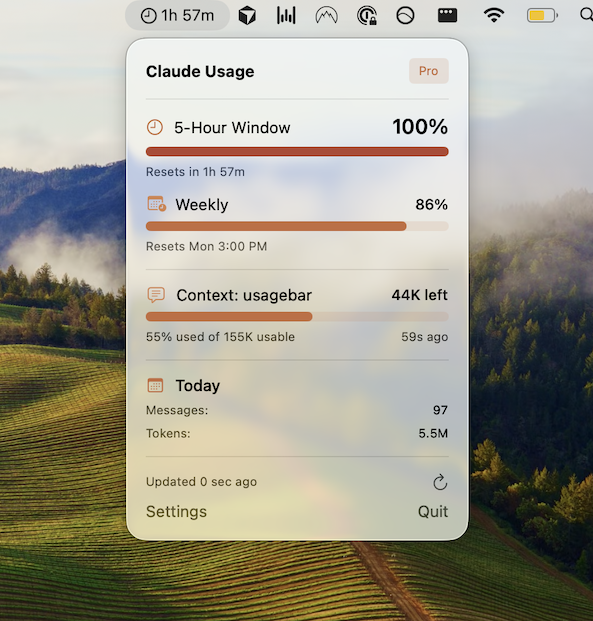
With Usagebar you can:
- See both limits instantly — Your 5-hour and weekly utilization are always visible
- Get notifications before you hit the wall — Alerts at 50%, 75%, and 90% so you can wrap up your work
- See reset timers — Know exactly when your next window opens
- Stay in flow — No context switching, no browser tabs, no typing commands
Tips for Managing Your Limits
Based on Anthropic's best practices:
- Plan before you prompt — Think through what you need before starting a conversation
- Batch related tasks — Combine multiple questions into single messages
- Use Sonnet for lighter tasks — Save Opus for when you really need it (switch with
/model) - Provide complete context upfront — Reduces back-and-forth that burns through your limits
- Monitor your usage — Whether via
/usage, the web app, or Usagebar
Summary
To check your Claude Code usage limits:
- In Claude Code: Run
/usage - In browser: Go to Claude > Settings > Usage
- From menu bar: Use Usagebar for always-visible monitoring with notifications
The first two options work but require active checking. If you want passive monitoring with alerts before you hit limits, Usagebar keeps you informed without breaking your flow.
Never Get Locked Out Mid-Task Again
Never hit your usage limits unexpectedly. Usagebar lives in your menu bar and shows your 5-hour and weekly limits at a glance.
Get Usagebar$9 — one-time, lifetime updates