How to Fix Errors with Claude Code: Essential Troubleshooting Guide
In this article
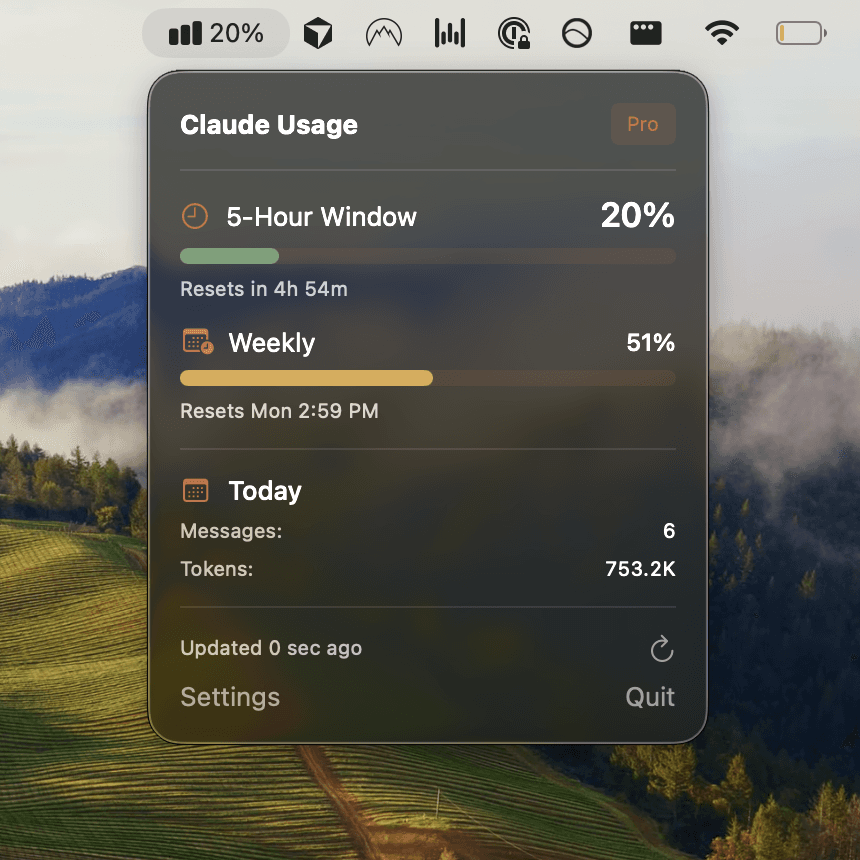
When Claude Code throws an error, it usually falls into one of three categories: authentication problems, usage limit issues, or debugging problems in your code. The fastest path to resolution is understanding which category you're hitting, then applying the right fix. Usagebar monitors your usage in real-time from your macOS menu bar, preventing the frustration of unexpected lockouts mid-task. With smart notifications at 50%, 75%, and 90%, you stay informed before hitting limits.
Target audience: Developers using Claude Code on Pro or Max plans who encounter errors during development work.
Key trade-offs: Some errors require environment changes (reinstalling dependencies, resetting auth), while others need code-level debugging. Understanding the distinction saves debugging time.
Data points: Authentication and configuration issues account for the majority of Claude Code problems. API key conflicts cause unexpected billing charges when environment variables override your subscription. Real-time usage monitoring prevents the common scenario of hitting usage caps during critical work.
Authentication and setup errors
Most Claude Code errors stem from authentication problems rather than functional issues. If Claude Code isn't recognizing your Pro or Max plan, or you're seeing unexpected API charges, start here.
Fix repeated authentication failures
Run /logout to sign out completely, then close Claude Code and restart with claude. Complete the authentication process from scratch. This clears cached credentials that may be corrupted.
If your browser doesn't open automatically during login, press c to copy the OAuth URL to your clipboard and paste it manually into your browser.
For persistent issues, remove the stored authentication file entirely:
rm -rf ~/.config/claude-code/auth.json
Then restart Claude Code and re-authenticate.
Resolve API key conflicts
If an ANTHROPIC_API_KEY environment variable is set on your system, Claude Code uses API credentials instead of your subscription, resulting in unexpected charges. Check for this conflict:
echo $ANTHROPIC_API_KEY
If this returns a value, unset it temporarily to let Claude Code use your Pro or Max plan instead:
unset ANTHROPIC_API_KEY
For permanent removal, edit your shell configuration file (~/.bashrc, ~/.zshrc, or equivalent) and delete the line that sets this variable.
Installation and environment errors
Installation errors vary by operating system. The native Claude Code installer handles most cases automatically, but platform-specific issues require targeted fixes.
Windows WSL path conflicts
If you see "exec: node: not found" or similar path errors on WSL, Windows npm may be taking priority over your Linux installation. Verify this:
which npm
which node
If they point to paths starting with /mnt/c/ (Windows paths), your WSL environment is using Windows Node.js. Add this to your shell configuration (~/.bashrc or ~/.zshrc):
export NVM_DIR="$HOME/.nvm" && [ -s "$NVM_DIR/nvm.sh" ] && \. "$NVM_DIR/nvm.sh"
macOS and Linux permission errors
Use the native Claude Code installer instead of npm to avoid permission conflicts:
curl -fsSL https://claude.ai/install.sh | bash
Verify the installation succeeds with:
claude doctor
This command checks your installation health, version, search functionality, and configuration validity.
Usage limit errors and lockouts
Claude Code enforces usage limits on Pro and Max plans to protect against runaway costs. When you approach or hit these limits, understanding your options prevents workflow interruptions.
Understanding usage limit warnings
Claude Code doesn't automatically enable extra API usage when you hit plan limits. Instead, you must actively choose your next step: enable extra usage through Claude Console, upgrade to a higher plan, or continue with pay-as-you-go billing.
Check your current usage anytime with the /usage command in Claude Code. This shows your remaining allocation for the current period and resets on a weekly schedule (typically Monday).
Prevent unexpected lockouts with real-time monitoring
Usagebar displays your Claude Code usage directly in the macOS menu bar, eliminating the need to run /usage manually. With smart alerts at 50%, 75%, and 90% usage, you see warnings well before hitting limits. The pay-what-you-want model keeps it accessible—students get it free.
This prevents the frustration of a 5-hour lockout during critical tasks like wrapping up a PR. Get Usagebar for instant download and instant visibility into your remaining usage.
Debugging code errors in Claude Code
When your code fails during execution, Claude Code provides tools to pinpoint the issue. The debugging workflow differs from fixing system configuration errors.
Add logging incrementally
Paste error messages and stack traces directly to Claude Code. Start with the immediate error and fix one issue at a time. If Claude doesn't spot the root cause immediately, ask it to add more detailed logging to your code and run it again.
This iterative approach narrows down the problem source. Keep pasting terminal output back to Claude Code as you run the app, and it learns from the feedback to zero in on the actual issue rather than surface-level symptoms.
Use plan mode for complex issues
For complex debugging, switch Claude Code to plan mode. This triggers a structured investigation approach where Claude presents a debugging plan before implementing fixes. This workflow prevents premature fixes and ensures you're addressing root causes.
Configuration debugging
If Search, file mentions, custom agents, or custom skills aren't working, install system ripgrep:
macOS (Homebrew): brew install ripgrep
Windows (winget): winget install BurntSushi.ripgrep.MSVC
Ubuntu/Debian: sudo apt install ripgrep
Then run /doctor to verify all configuration items are working correctly.
When to escalate issues
If troubleshooting doesn't resolve your problem, Claude Code provides built-in escalation paths. Use the /bug command within Claude Code to report problems directly to Anthropic with full context, or file issues on the GitHub repository.
Before escalating, run /doctor to gather diagnostic information about your installation. This output helps Anthropic engineers reproduce and fix your specific issue faster.
Key takeaways
- Authentication errors: Run
/logout, restart, and re-authenticate. Check for API_KEY environment variable conflicts. - Installation errors: Use the native installer (
curl -fsSL https://claude.ai/install.sh | bash) to avoid permission conflicts. - Usage limit errors: Check your status with
/usage. Monitor usage in real-time with Usagebar to prevent lockouts. - Code debugging: Add logging incrementally, paste error messages to Claude Code, and use plan mode for complex issues.
- Persistent issues: Run
/doctorfor diagnostics, then file a bug report via/bugor GitHub.
Never Get Locked Out Mid-Task Again
Never hit your usage limits unexpectedly. Usagebar lives in your menu bar and shows your 5-hour and weekly limits at a glance.
Get Usagebar$9 — one-time, lifetime updates