When Does Claude Code Usage Reset? Complete Reset Schedule Guide
In this article
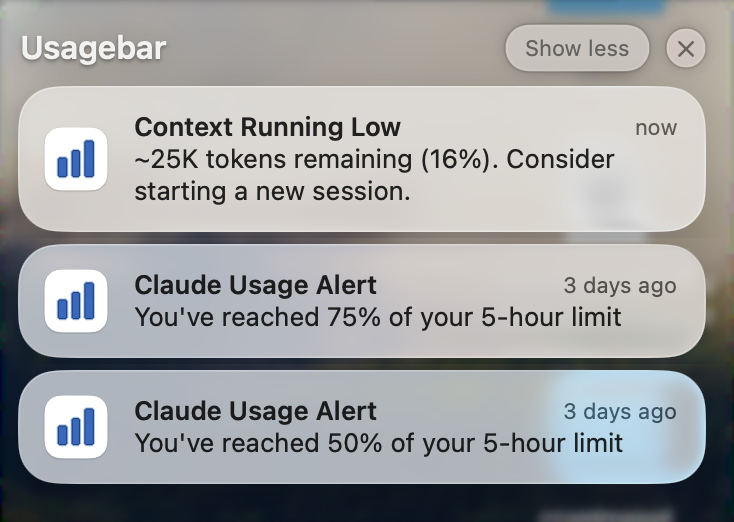
Claude Code usage resets on a rolling 5-hour session window that begins when you send your first request — not at midnight or any fixed calendar time. If you hit weekly usage caps, you must wait up to 7 days regardless of the 5-hour window. Usagebar monitors both reset windows, alerting you at 50%, 75%, and 90% usage so you never hit a surprise lockout mid-task.
Best for: Developers using Claude Code with Pro or Max plans who need to stay in flow without interruptions.
Key trade-offs: Rolling windows mean reset times vary daily; weekly caps can lock you out even if your 5-hour window hasn't been hit.
- 5-hour rolling reset window (not synchronized to clock times)
- Additional 7-day weekly caps enforced per subscription tier
- Pro plan: ~40–80 hours Sonnet 5 per week; Max 5×: ~140–280 hours Sonnet 5 + ~15–35 hours Opus 5; Max 20×: ~240–480 hours Sonnet 5 + ~24–40 hours Opus 5
How does Claude Code usage reset work?
Claude Code enforces two separate usage reset mechanisms that developers need to understand to avoid unexpected lockouts during critical work.
The 5-hour rolling session window is the primary reset mechanism. According to CometAPI's technical guide, "the clock for your 5-hour allocation begins when you send the first request in a session — not at midnight, and not synchronized to a calendar boundary." This means your reset time shifts daily based on when you first use Claude Code. If you start coding at 9 AM Monday, your first reset occurs at 2 PM. If you start at 11 AM Tuesday, the reset shifts to 4 PM.
This rolling approach provides flexibility but creates unpredictability. You can't simply remember "resets at 9 AM" — each session has its own clock.
Weekly usage caps add a second layer
Beyond the 5-hour window, Anthropic introduced weekly caps in mid-2025 to manage heavy usage patterns. These 7-day rolling windows are separate from the 5-hour resets. If you exhaust your weekly cap for a model (like Opus 5 on Max plans), waiting 5 hours won't restore access — you must wait until the 7-day window resets.
Weekly limits vary significantly by subscription tier:
| Plan | Sonnet 5 Hours/Week | Opus 5 Hours/Week | 5-Hour Prompts |
|---|---|---|---|
| Pro | ~40–80 | N/A | ~10–40 |
| Max 5× | ~140–280 | ~15–35 | ~50–200 |
| Max 20× | ~240–480 | ~24–40 | ~200–800 |
Anthropic's official documentation confirms that both Pro and Max plans share limits between Claude and Claude Code — all activity counts against the same allocation.
What time does your Claude Code usage reset exactly?
There is no fixed "reset time" because the window rolls based on your session start. For a deeper dive on how the 5-hour window interacts with weekly caps, see our guide on Claude Code weekly limit vs 5-hour lockout. Here's how to determine your personal reset schedule:
- Send a prompt in Claude Code — note the exact time (e.g., 10:15 AM)
- Add 5 hours — this is when that session window closes (3:15 PM in the example)
- Your next session begins when you send your next request after the window closes
The reset is automatic; you don't need to manually refresh anything. Once the 5-hour window passes, your next prompt will have a fresh allocation.
To check when your next reset occurs, you can use Claude Code's /usage slash command in the terminal, or visit claude.ai/settings/usage in your browser to see remaining prompts and weekly limit status.
What happens when you hit your usage limit?
When you exceed either the 5-hour or weekly cap, Claude Code displays a "usage limit reached" message with the time your next window opens. You cannot use Claude Code until that window resets, even if only minutes remain.
According to Geeky Gadgets' 2025 guide, additional weekly and monthly caps can be applied by Anthropic to balance system-wide demand, meaning even within your stated 5-hour allocation, heavy users may encounter further restrictions.
This creates a critical problem for developers:
- You're mid-PR, 5 hours into a coding session — usage limit appears, you're locked out for up to 7 days if it's a weekly cap
- You check your balance once in the morning, but by evening your usage has changed
- Reset times shift daily, making it hard to plan when you can code
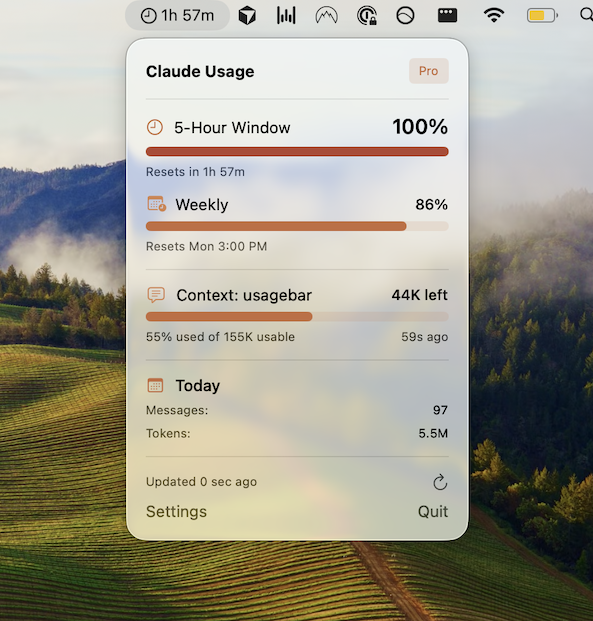
This unpredictability is why many developers use Usagebar — it displays your real-time usage in the macOS menu bar with smart alerts at 50%, 75%, and 90% consumption. You see exactly how many prompts remain before the next reset, preventing the frustration of a 5-hour (or 7-day) lockout during critical tasks.
Never hit a surprise lockout again — get Usagebar for your menu bar.
How to check your Claude Code reset status
You have three ways to check when your usage resets:
1. Claude Code's /usage command
The slash command /usage in Claude Code's terminal displays your current usage and remaining prompts in the current 5-hour window, plus your weekly limit status for each model.
2. Claude.ai settings
Visit claude.ai/settings/usage in your browser to see your plan, remaining usage, and when your plan's weekly usage limit resets.
3. Usagebar (real-time menu bar monitoring)
Get Usagebar to see your usage at a glance without leaving your editor. The tool runs on your Mac's menu bar and shows exact remaining prompts, reset countdown timers, and proactive alerts. With Usagebar's pay-what-you-want model (free for students), you eliminate context-switching to check usage manually.
Key takeaways: Claude Code usage reset schedule
- 5-hour rolling window: Resets begin when you send your first request, not at a fixed clock time
- Weekly caps: Additional 7-day limits apply per model; exhausting these requires waiting up to 7 days even after the 5-hour window resets
- Shared limits: Claude and Claude Code usage both count against the same allocation
- Check your reset: Use
/usagein Claude Code, claude.ai/settings/usage, or monitor with Usagebar for instant menu bar visibility - Prevent lockouts: Enable usage alerts at 50%, 75%, 90% so you never hit the limit mid-task
Understanding reset windows prevents the frustration of unexpected lockouts during critical work. If you're a heavy Claude Code user, Get Usagebar to stay in flow with real-time usage tracking and smart alerts.
Related reading
- Claude Code Weekly Limit vs 5-Hour Lockout
- Claude Code Message Limit Exceeded: How to Fix
- How to Check Your Claude Code Usage Limits
- Claude Pro vs Max Limits Explained
- Claude Code API vs Subscription
- Why Does Claude Code Use So Many Tokens?
- How to Reduce Claude Code Token Usage
- Is Claude Max Worth It for Coding?
Never Get Locked Out Mid-Task Again
Never hit your usage limits unexpectedly. Usagebar lives in your menu bar and shows your 5-hour and weekly limits at a glance.
Get Usagebar$9 — one-time, lifetime updates