Best Claude Code Commands for Developers: Slash Commands Guide
In this article
The most productive developers using Claude Code master slash commands to control their sessions without breaking focus. Use /compact to shrink conversation history, /usage to check your token budget, and /clear to start fresh — these three commands alone prevent the frustration of hitting usage limits mid-project. Combined with Usagebar's smart 50%, 75%, and 90% alerts, you'll never lose work to a surprise lockout again. This guide covers 15+ essential commands that keep you in flow.
Who benefits: Full-time developers, AI engineers, and teams building with Claude Code daily. Key trade-off: Commands work best when you combine them with active usage monitoring — Usagebar eliminates the manual checking.
Key facts on Claude Code usage
- Usage limits are shared across Claude and Claude Code on the same monthly quota
- 30+ slash commands are available for session control and workflow optimization
- The /compact command can reduce token usage by 40%+ in long conversations
What are Claude Code slash commands and why they matter?
Slash commands are special directives you send to Claude Code by typing a forward slash (/) followed by a command name. They control your session state, manage conversation history, and help you monitor resource usage — all without losing context or requiring a page refresh. Unlike regular prompts, these are system-level instructions that Claude processes immediately.
The critical advantage: slash commands prevent context switching. Instead of leaving Claude Code to check your usage on claude.ai, you stay in your terminal and type /usage. Instead of manually tracking when your limit resets, Usagebar's menu bar widget tells you exactly when your window resets — no guessing.
Essential slash commands every developer should know
/usage — Check your token budget instantly
The most important command for staying in control. /usage displays your remaining tokens, daily limits, and reset schedule — everything you need to plan your session. No logging into claude.ai, no context switching. Type it before tackling a complex refactoring task.
Pro tip: Run /usage early in your session. If you're already at 75% usage, switch to Usagebar (which sits in your macOS menu bar) for real-time alerts instead of manual checks.
/compact — Compress conversation history to save tokens
Long conversations bloat your context window. /compact summarizes older messages while preserving critical details, recovering 30—50% of tokens in typical workflows. This command is a lifesaver during multi-hour debugging sessions or when you're building features iteratively.
When to use: After 20—30 back-and-forth exchanges, before tackling a major new feature, or when you notice token usage climbing steadily.
/clear — Start a fresh conversation
Wipe the slate clean. /clear resets your session history completely, useful for switching between unrelated tasks or when earlier context is no longer relevant. Faster than closing and reopening Claude Code.
/model — Switch between Claude Sonnet, Opus, and Haiku
Switch between available Claude models without restarting. Use Haiku 4.5 for simple tasks (faster, cheaper tokens), Sonnet 4.5 for general coding, and Opus 4.5 for complex reasoning. This command lets you optimize both speed and cost within a single session.
/help — Discover all available commands
Lists every slash command installed in your environment, including custom commands you've created or your team has configured. Bookmark this for reference.
/context — Check how much of your context window is used
Similar to /usage but focuses on your conversation context rather than monthly quota. Tells you when it's time to /compact or /clear to regain space for longer responses.
Advanced commands for power users
Custom slash commands for your team
Beyond built-ins, you can create custom commands stored in .claude/commands/ (project-level) or ~/.claude/commands/ (personal). Examples:
/code-review— Analyzes recent git diffs and provides feedback on code quality, security, and test coverage/test— Detects your test framework (Jest, pytest, etc.) and runs tests with optional patterns/security-check— Scans for SQL injection, XSS, exposed credentials, and insecure configurations/fix-issue [issue-number]— Pulls a GitHub issue description and implements the fix
Custom commands accept arguments (using $1, $2 placeholders), execute bash commands inline (with !git status`` syntax), and reference files (with @package.json syntax). They're markdown files with optional YAML configuration — Anthropic's SDK docs cover the full spec.
Skills: The new evolution of slash commands
In 2026, skills and slash commands merged into a unified system. Creating a skill in .claude/skills/ automatically makes it available as a slash command, giving you more flexibility for complex workflows. Skills can define allowed tools, model preferences, and argument hints.
How Usagebar complements Claude Code commands
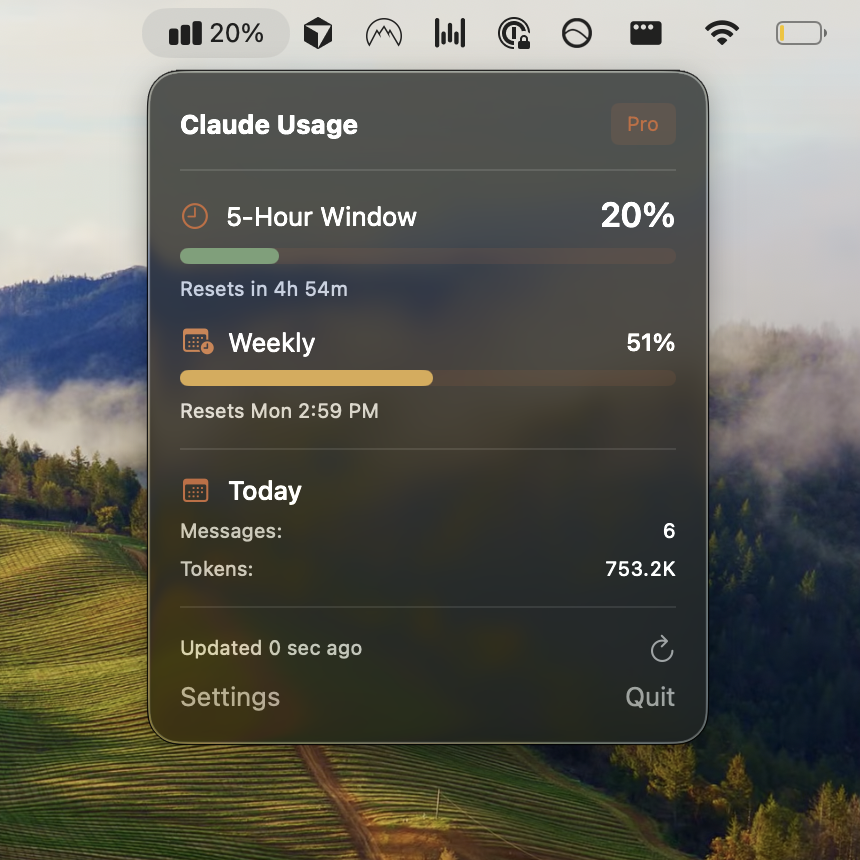
Slash commands are powerful, but checking /usage repeatedly breaks your flow. Usagebar sits in your macOS menu bar, showing your Claude Code usage at a glance without switching windows. It alerts you at 50%, 75%, and 90% usage, preventing the dreaded 5-hour lockout when you're wrapping up a critical PR.
Key features that pair with commands:
- Instant usage visibility — No need to type /usage; glance at the menu bar
- Secure Keychain storage — Your API keys never touch the cloud
- Reset window alerts — Know exactly when your usage resets, not guesswork
- Pay-what-you-want pricing — Free for students, flexible pricing for professionals
Workflow: Start your session with /usage, then rely on Usagebar's menu bar to stay aware. When you hit 75%, decide whether to switch to Haiku (/model), compress history (/compact), or clear context (/clear). Stay in your terminal. Stay focused.
Practical command workflow for typical tasks
Scenario 1: Long debugging session (2—3 hours)
- Start: /usage to set expectations
- Every 30 minutes: Glance at Usagebar's menu bar widget
- At 70% usage: Run /compact to recover tokens
- Continue debugging
- Near 85% usage: Switch models with /model to Haiku for smaller follow-ups, or /clear if moving to a new task
Scenario 2: Building a new feature end-to-end
- /usage at the start
- Build feature (5—10 exchanges)
- /clear to switch context for write tests
- /usage to verify you still have room
- Write and refactor tests (5—10 more exchanges)
- If approaching limit: /compact or /model to Haiku for final tweaks
Scenario 3: Code review and refactoring
- Use custom /code-review command to analyze git diffs
- /context to see if you need /compact
- Apply fixes iteratively
- Run custom /test to validate
- Monitor with Usagebar throughout
Key takeaways
/usageand/modelare the two commands that change how you work — check limits early and optimize token spend by switching models/compactand/clearextend long sessions by recovering token space without losing progress- Custom commands let teams standardize workflows (code review, testing, security checks) and eliminate repetitive prompts
- Usagebar + slash commands form a complete usage strategy — active monitoring + proactive command control = zero surprise lockouts
- Skills replace slash commands in 2026 — they're the same system, just with more power and flexibility
Get started today
Start with /usage and /compact. Type them once to understand the output. Then download Usagebar for macOS menu bar alerts — it's free for students and pay-what-you-want for professionals. You'll stay in flow, never hit a surprise lockout, and know exactly how your usage resets.
Get Usagebar — Instant download, secure Keychain storage, smart alerts. No setup friction.
Sources
Never Get Locked Out Mid-Task Again
Never hit your usage limits unexpectedly. Usagebar lives in your menu bar and shows your 5-hour and weekly limits at a glance.
Get Usagebar$9 — one-time, lifetime updates