How to Check Claude Opus 4.5 Usage Limit in Claude Code
In this article
- Method 1: Use the /usage Command in Claude Code
- Method 2: Check Settings > Usage on claude.ai
- Method 3: Use Usagebar for Real-Time Menu Bar Tracking
- Understanding Claude Opus 4.5 Limits
- Why Real-Time Tracking Prevents Frustration
- Usage Limits and Billing Reset Windows
- When to Upgrade or Enable Extra Usage
- Key Takeaways
- Get Usagebar for Seamless Usage Tracking
- Sources
You're in the middle of shipping a critical feature when Claude suddenly stops responding. Your usage limit hit. With Usagebar, you'll see usage limits in your macOS menu bar before they become blockers. But first, here's how to check your Claude Opus 4.5 usage limit across the platforms you're already using.
The fastest way to check usage in Claude Code is the /usage command (you can also use /status). On claude.ai web, check Settings > Usage for session and weekly breakdowns. For developers who want continuous visibility, Usagebar displays your real-time usage in the macOS menu bar with intelligent 50%, 75%, and 90% alerts so you never hit a 5-hour lockout by surprise.
Method 1: Use the /usage Command in Claude Code
This is the fastest way to check remaining capacity while you're working. Open Claude Code and run:
/usage
Claude Code returns your current allocation status instantly. You'll see remaining capacity for both session and weekly limits, plus exactly when each resets. According to Anthropic's documentation, "all activity in both tools counts against the same usage limits," so the /usage command reflects combined Claude + Claude Code consumption.
This is the simplest approach when you're actively coding. No context switching needed.
Method 2: Check Settings > Usage on claude.ai
If you prefer the web interface, navigate to claude.ai/settings/usage. This dashboard shows both your session and weekly usage bars with clear visual indicators.
According to Anthropic's usage limit best practices, there are two types of limits you need to understand:
- Five-hour session limit – How much you consume in a single continuous session
- Weekly limits – Your plan's overall weekly cap that resets on a schedule
Both must have available capacity. If your weekly limit is exhausted, you can't use Claude even if your session just reset. This is why tracking matters: you need visibility into both buckets.
Method 3: Use Usagebar for Real-Time Menu Bar Tracking
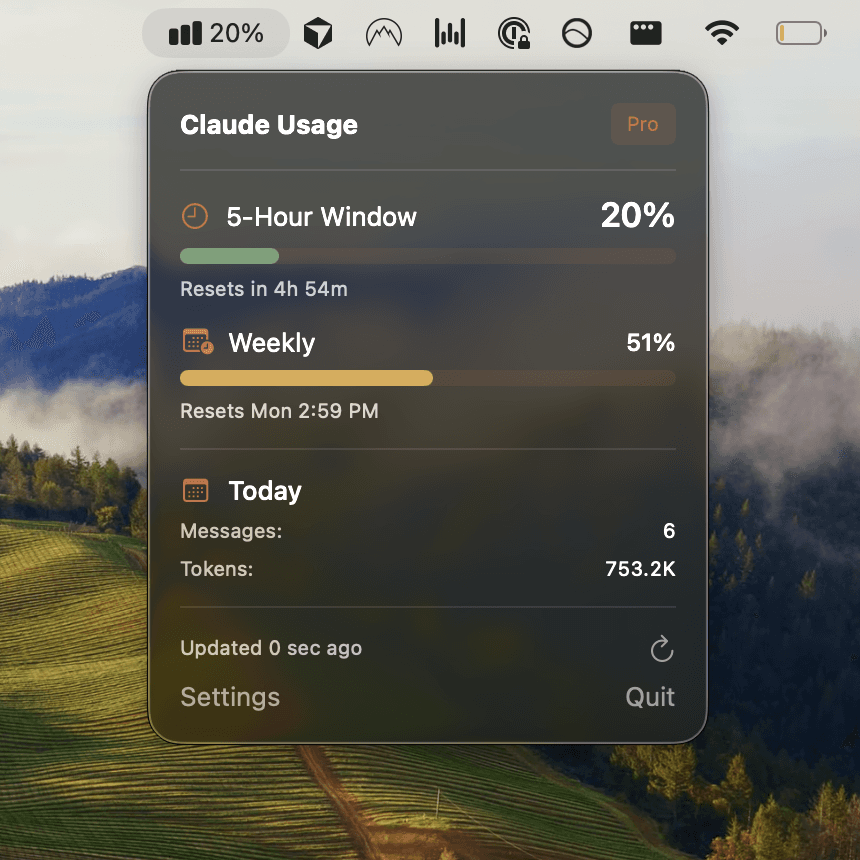
Usagebar gives you continuous visibility without tab-switching. The app securely stores your Claude credentials using macOS Keychain and displays usage limits directly in your menu bar. You'll see at a glance:
- Current session usage percentage
- Weekly usage percentage
- Time until reset windows
- Smart alerts at 50%, 75%, and 90% thresholds
Unlike checking Settings > Usage or running /usage repeatedly, Usagebar keeps you informed without breaking focus. The menu bar location means you're never more than a glance away from your usage status.
Understanding Claude Opus 4.5 Limits
Opus 5 is now Anthropic's current flagship, but the limits and checking methods here apply the same way whichever Opus version you're running. Claude Opus 4.5 plans have both session and weekly limits. Your exact allocation depends on your plan tier:
- Pro plan – Limited messages per week, 5-hour session cap
- Max plan – Higher weekly allocation, same 5-hour session limit
- Max 5x or Max 20x – Extended limits for sustained development
Usage factors vary by operation. Message length, file attachments, conversation history length, tool usage (like Research), and model choice all impact consumption. Longer prompts and larger files consume more capacity.
Why Real-Time Tracking Prevents Frustration
Checking usage occasionally works until it doesn't. You're deep in a debugging session, Claude hits the limit, and you're locked out for 5 hours. By then, you've lost momentum and context.
Real-time tracking via Usagebar prevents this pattern. You know exactly when you're approaching limits and can plan accordingly:
- 50% alert – Adjust your workflow if needed (shorter prompts, fewer file attachments)
- 75% alert – Start wrapping up, or evaluate upgrading to Max
- 90% alert – Final warning before a potential lockout
The app is free for students with a Claude account and uses a flexible "pay what you want" model otherwise, so you can stay in flow without breaking the bank.
Usage Limits and Billing Reset Windows
Your weekly limit resets at a specific time each week based on your billing cycle. This isn't midnight UTC or your local midnight—it's tied to when your plan renews. Knowing your exact reset window prevents misjudgment about whether you have capacity left.
Usagebar displays the precise time until reset, eliminating guesswork. You can check via /usage in Claude Code or Settings > Usage on the web, but Usagebar shows it persistently so you always know your runway.
When to Upgrade or Enable Extra Usage
If you consistently hit limits mid-week, Anthropic offers extra usage for paid plans. Pro users can upgrade to Max (5x more weekly allocation). Max users can opt for Max 5x or Max 20x for even higher caps.
Track your consumption patterns over 2–3 weeks using Usagebar or manual checks. If you're consistently hitting 75%+ by mid-week, upgrading saves time and keeps you unblocked.
Key Takeaways
- Use
/usagein Claude Code for an instant snapshot of remaining capacity - Check Settings > Usage on claude.ai for detailed session and weekly breakdowns
- Enable Usagebar for continuous menu bar visibility and smart alerts before you hit limits
- Remember: both session and weekly limits must have capacity—one limit exhausted blocks you entirely
- Plan for upgrades if you're consistently hitting 75%+ usage mid-week
Get Usagebar for Seamless Usage Tracking
Usagebar keeps you from the frustration of a surprise 5-hour lockout. Install it, authenticate once (credentials are secure in macOS Keychain), and see your usage in the menu bar. Instant download, flexible pricing, and free for students.
Sources
Never Get Locked Out Mid-Task Again
Never hit your usage limits unexpectedly. Usagebar lives in your menu bar and shows your 5-hour and weekly limits at a glance.
Get Usagebar$9 — one-time, lifetime updates