How to Set Up Cron Jobs with Claude Code (Automated Scheduling Guide)
In this article
- What is headless mode in Claude Code, and why does it matter for cron?
- How to set up a basic cron job with Claude Code step by step
- Common cron job use cases for Claude Code
- The usage limit problem: why cron jobs get silently killed
- Using systemd timers as a cron alternative
- Integrating cron-style scheduling into CI/CD pipelines
- Key takeaways
- Sources
The fastest way to set up a cron job with Claude Code is to run it in headless (non-interactive) mode using the --print flag, wrap the command in a shell script, and schedule that script with your system's crontab. This approach works on macOS and Linux without any extra tooling. The main trade-off: each scheduled run consumes tokens from your Claude Code usage window, so long or frequent jobs can eat through your 5-hour limit faster than you'd expect.
- Claude Code's non-interactive mode accepts a prompt via
-pand exits after printing the result, making it scriptable. - Claude Pro and Max plans share a usage limit window that resets every 5 hours, not at midnight.
- Hitting that limit mid-cron causes a silent failure unless you add exit-code handling to your script.
What is headless mode in Claude Code, and why does it matter for cron?
Claude Code is primarily an interactive terminal tool, but it also supports a non-interactive (headless) mode designed for scripting, pipelines, and automation. When you pass --print (or -p) with a prompt, Claude Code runs the task, prints output to stdout, and exits with a zero or non-zero exit code depending on success. No readline loop, no interactive prompts. That makes it composable with standard Unix tools like cron, systemd, or any CI/CD runner.
According to the Claude Code slash commands documentation, headless mode also skips slash commands that require a live session (like /clear or /usage), so your cron scripts should rely entirely on prompt text and shell-level logic.
How to set up a basic cron job with Claude Code step by step
Step 1: verify Claude Code runs non-interactively
Before touching crontab, confirm headless mode works from your terminal:
claude --print "Summarize the last 10 lines of /var/log/app.log and flag any ERROR entries"
If you get a clean text response and your shell returns to the prompt, you're ready to script it.
Step 2: write a wrapper shell script
Never put raw claude invocations directly in crontab. Use a wrapper script so you can handle errors, log output, and set environment variables reliably.
#!/bin/bash
# /home/you/scripts/claude-nightly-review.sh

set -euo pipefail

LOGFILE="/home/you/logs/claude-cron.log"
TIMESTAMP=$(date '+%Y-%m-%d %H:%M:%S')

echo "[$TIMESTAMP] Starting Claude Code cron job" >> "$LOGFILE"

claude --print "Review the git diff from the last 24 hours in /var/www/myapp and write a one-paragraph summary of changes. Output plain text only." \
  >> "$LOGFILE" 2>&1

EXIT_CODE=$?
if [ $EXIT_CODE -ne 0 ]; then
  echo "[$TIMESTAMP] Claude Code exited with code $EXIT_CODE - possible usage limit hit" >> "$LOGFILE"
fi
Make it executable: chmod +x /home/you/scripts/claude-nightly-review.sh
Step 3: add the job to crontab
Open your crontab with crontab -e and add a line. The following example runs every night at 2 AM:
# Run Claude Code code review every night at 2 AM
0 2 * * * /home/you/scripts/claude-nightly-review.sh
On macOS, cron jobs may need Full Disk Access granted to /usr/sbin/cron in System Settings > Privacy & Security if your script touches protected directories.
Step 4: set the correct PATH and environment
Cron runs with a minimal environment. If claude isn't in /usr/local/bin or wherever cron looks, the job silently fails. Add an explicit PATH at the top of your wrapper script:
export PATH="/usr/local/bin:/opt/homebrew/bin:$PATH"
Also ensure your ANTHROPIC_API_KEY (or Claude Max session) is accessible. If you use API key auth, export it in the script from a secrets file with restricted permissions (chmod 600).
Step 5: test before scheduling
Run the script manually as the cron user to catch environment issues before they happen silently at 2 AM:
bash /home/you/scripts/claude-nightly-review.sh
cat /home/you/logs/claude-cron.log
Common cron job use cases for Claude Code
- Nightly code review digests: summarize git diffs and post results to a Slack webhook or email.
- Log analysis: scan application logs for anomalies and generate a daily report file.
- Documentation refresh: re-generate or update README sections based on changed source files.
- Database query explanations: run
EXPLAIN ANALYZEoutput through Claude to surface slow query suggestions. - Spreadsheet automation: combine with scripts to automate spreadsheet updates using Claude Code.
The usage limit problem: why cron jobs get silently killed
Claude Code runs on a rolling 5-hour usage window tied to your Pro or Max plan. As explained in Anthropic's documentation on using Claude Code with Pro or Max plans, once you hit your limit, Claude Code returns a non-zero exit code and stops processing. For interactive sessions that's obvious. For cron jobs, it's invisible unless you're watching logs.
The practical consequence: a cron job scheduled during your peak coding hours might run fine for a week, then silently fail on a heavy day when your manual usage has already consumed most of the window. You only find out the next morning when the expected output isn't there.
How to schedule cron jobs around your usage window reset
The Claude Code usage reset schedule is rolling, not fixed to midnight. Your window resets 5 hours after your first request in that window. To keep cron jobs from competing with your active coding sessions:
- Schedule heavy jobs during low-activity hours (late night or early morning).
- Check your remaining capacity before triggering large jobs using the
/usagecommand or claude.ai/settings/usage. - Break large prompts into smaller sequential calls with intermediate checks.
- Add an exit-code guard in your script (see the wrapper script above) so failures are logged immediately.
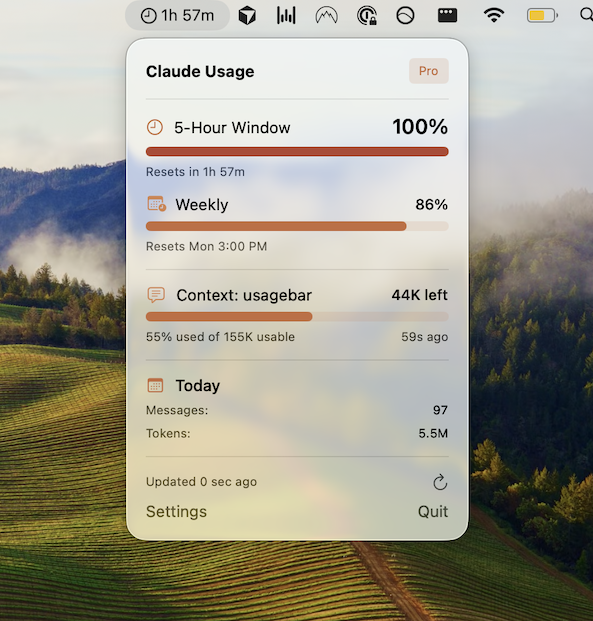
The most reliable way to stay ahead of this is a real-time menu bar indicator. Usagebar sits in your macOS menu bar and shows live usage as a percentage, with smart alerts at 50%, 75%, and 90% of your limit. It reads credentials securely from macOS Keychain and tells you exactly when your window resets, so you can time cron jobs to fire after a reset rather than into an already-depleted window. It's available on a pay-what-you-want basis, with a free option for students. Get Usagebar to avoid the frustration of discovering a cron job silently failed hours after the fact.
Using systemd timers as a cron alternative
On Linux, systemd timers are a more robust alternative to crontab. They support dependency ordering, automatic retry on failure, and detailed logs via journalctl. To set one up for Claude Code:
- Create a service file at
/etc/systemd/system/claude-review.servicethat runs your wrapper script. - Create a timer file at
/etc/systemd/system/claude-review.timerwith your schedule (e.g.,OnCalendar=*-*-* 02:00:00). - Enable and start the timer:
sudo systemctl enable --now claude-review.timer - Check status:
systemctl list-timers
The key advantage over cron: if Claude Code returns a non-zero exit code (usage limit, network error, etc.), systemd logs the failure with a timestamp in the journal. You can query it with journalctl -u claude-review.service --since today.
Integrating cron-style scheduling into CI/CD pipelines
GitHub Actions supports scheduled triggers via the schedule event using standard cron syntax. This is often cleaner than server-side crontab for project-specific automation. You can set up a Claude Code GitHub Actions CI/CD workflow that runs on a schedule and uses your API key stored as a repository secret.
Example workflow trigger:
on:
  schedule:
    - cron: '0 2 * * *'  # every night at 2 AM UTC
For broader automation infrastructure, the Claude Code CI/CD pipeline setup guide covers authentication patterns and output handling in detail.
Key takeaways
- Use
claude --print "your prompt"for all non-interactive and cron-compatible invocations. - Always wrap the command in a shell script with explicit PATH, logging, and exit-code handling.
- Schedule jobs during off-peak hours to avoid competing with your active Claude Code sessions for the shared 5-hour usage window.
- Use systemd timers on Linux for automatic failure logging and retry logic.
- Monitor your remaining usage in real time with Usagebar so you can time cron jobs around resets and get alerted before you're cut off mid-task.
- For project-level scheduling, GitHub Actions'
scheduletrigger is cleaner than server crontab and keeps credentials in repository secrets.
Sources
Never Get Locked Out Mid-Task Again
Never hit your usage limits unexpectedly. Usagebar lives in your menu bar and shows your 5-hour and weekly limits at a glance.
Get Usagebar$9 — one-time, lifetime updates