Best Claude Code Skills to Install in 2025
In this article
- What are Claude Code skills and how do you install them?
- Best pre-built skills for document workflows
- Essential custom skills for development workflows
- How to create your first skill in 3 steps
- Advanced skill patterns you should know
- Comparing skill installation approaches
- Monitor your usage while building skills
- Common pitfalls when installing skills
- Next steps: Make skills work for your workflow
- Sources
Claude Code Skills extend your capabilities with reusable, domain-specific expertise that loads automatically when relevant. The best skills to install depend on your workflow: if you work with documents, start with pre-built Agent Skills for PowerPoint, Excel, Word, and PDF handling. For productivity, install custom skills that automate your most repetitive tasks—code review, deployment workflows, or API testing. With Usagebar, you'll know exactly when you're approaching usage limits so you can manage your skill-heavy workflows efficiently.
Who it's for: developers using Claude Code who want to automate workflows and handle documents programmatically without writing boilerplate code.
Key trade-offs: Pre-built skills consume some context but eliminate the need to explain tasks each conversation. Custom skills require upfront setup but pay dividends through repeated use.
Data points:
- Properly optimized skill descriptions improve activation from 20% to 50%—adding examples pushes it to 90%
- Skills run in Claude's VM environment with filesystem access, making them far more powerful than inline prompts
- You can install skills at three levels: enterprise (org-wide), personal (~/.claude/skills/), or project-specific (.claude/skills/)
What are Claude Code skills and how do you install them?
Agent Skills are modular capabilities that extend Claude's functionality. Each Skill packages instructions, metadata, and optional resources (scripts, templates) that Claude uses automatically when relevant. Instead of explaining the same task in every conversation, you create a Skill once and Claude invokes it when needed.
Installation depends on scope:
- Pre-built skills (PowerPoint, Excel, Word, PDF) are available by default—no installation needed
- Personal skills go in ~/.claude/skills/skill-name/SKILL.md and work across all your projects
- Project skills go in .claude/skills/skill-name/SKILL.md and apply only to that project
- Plugin skills are bundled inside plugins you download from Claude Code Plugins
The simplest way to create your first skill: create a directory, add a SKILL.md file with YAML frontmatter, and Claude discovers it automatically. Skills follow the Agent Skills open standard, so you can use them across Claude Code, the Claude API, and the Agent SDK.
Best pre-built skills for document workflows
Pre-built Agent Skills handle common document tasks without additional setup. These are available immediately on Claude Pro and Max plans with code execution enabled.
PowerPoint (pptx): Create, edit, and analyze presentations. Perfect for generating slide decks from research, reformatting existing presentations, or extracting content for analysis.
Excel (xlsx): Build spreadsheets, analyze data, generate reports with charts. Eliminates the need to manually format data or build complex formulas.
Word (docx): Create and edit documents, format text. Useful for generating reports, proposal templates, or batch document creation.
PDF (pdf): Generate formatted PDF documents and reports. The most versatile skill for creating deliverables that need distribution.

Essential custom skills for development workflows
Custom skills multiply your productivity by automating repetitive development tasks. Here are the highest-impact skills to build first:
Code Review Skill: Automate code reviews against your project standards. Instructions reference your setup guide and project conventions, and Claude applies them consistently.
Deployment Workflow Skill: Automate deployments with guardrails. Set disable-model-invocation: true so Claude won't deploy without your approval. Include test running, build verification, and deployment steps.
API Testing Skill: Set up structured API testing against your endpoints. Include curl commands, validation rules, and expected response formats.
Database Query Skill: Bundle your database schema and query patterns. Claude generates queries that follow your conventions.
Documentation Generator Skill: Generate README files, API docs, or changelog entries with consistent formatting.
How to create your first skill in 3 steps
Step 1: Create the directory
For a personal skill available across all projects:
mkdir -p ~/.claude/skills/my-skill
Step 2: Write SKILL.md with frontmatter
Every skill starts with YAML frontmatter (metadata between --- markers) followed by markdown instructions:
---
name: my-skill
description: What this skill does and when to use it
---

# Your Skill Name

## Instructions
Clear step-by-step guidance for Claude to follow.

## Examples
Concrete examples of using this skill.
Step 3: Test it
Claude discovers the skill automatically. Invoke it directly with /my-skill or let Claude trigger it when relevant to your request.
For a complete walkthrough with examples, see the Agent Skills overview.
Advanced skill patterns you should know
Restrict execution to you only: Add disable-model-invocation: true to prevent Claude from running deployment or deletion skills without your approval.
Progressive disclosure: Skills can include multiple files (templates, reference docs, scripts) loaded only when needed. This keeps context efficient even with complex skills. For example, a 50-page API reference loads only when Claude asks for it, consuming zero tokens otherwise.
Dynamic context injection: Use the `!command` syntax to run shell commands before the skill executes. Fetch live pull request data, check current git status, or validate dependencies before Claude starts work.
Fork execution: Set context: fork to run a skill in an isolated subagent context. This prevents the skill from accessing your conversation history, useful for research-only tasks.
Optimize skill descriptions: The Awesome Claude Skills repository shows that descriptions are critical—a specific description tells Claude exactly when to invoke your skill. Testing reveals that well-optimized descriptions improve activation from 20% to 90%.
Comparing skill installation approaches
| Approach | Scope | Setup Time | When to Use |
|---|---|---|---|
| Pre-built Skills | All users, built-in | 0 minutes | Document workflows (PowerPoint, Excel, Word, PDF) |
| Personal Skills (~/.claude/skills/) | All your projects | 5-15 minutes | Reusable workflows you use across multiple codebases |
| Project Skills (.claude/skills/) | Single project only | 5-15 minutes | Project-specific conventions, deployment steps, or domain knowledge |
| Plugin Skills | Distributed to team | 30+ minutes | Team-wide skills you want to share through Claude Code Plugins |
Monitor your usage while building skills
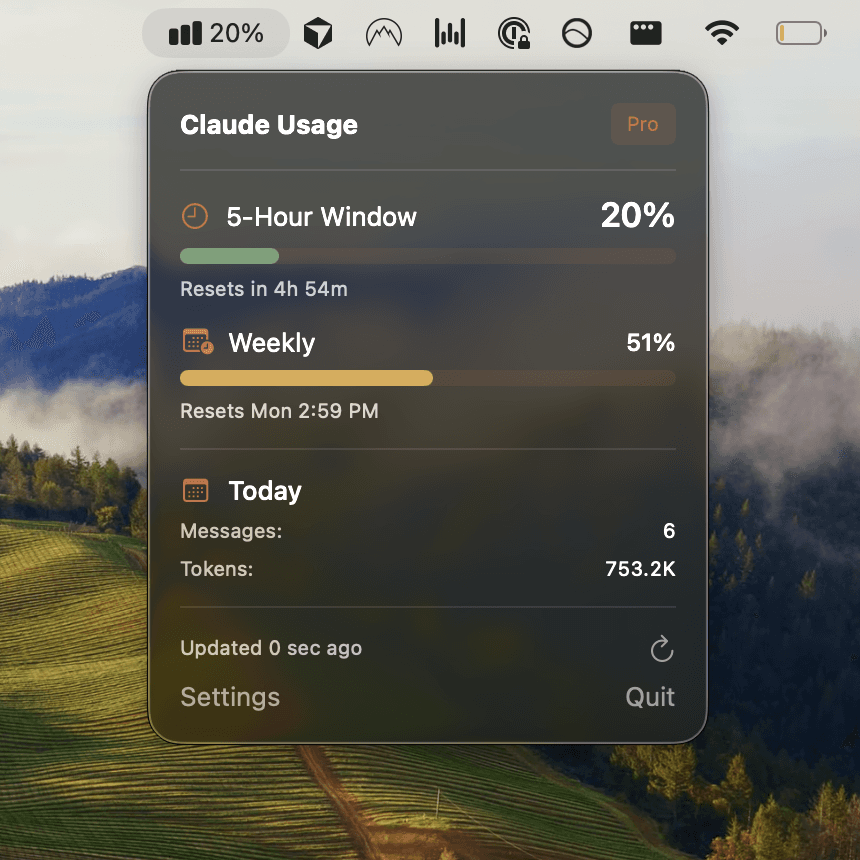
As you install and test skills, monitor your Claude Code usage to avoid unexpected limits. Usage windows reset on a schedule, and heavy skill execution can consume limits quickly. Get Usagebar to see your usage in the macOS menu bar with smart notifications at 50%, 75%, and 90%—keeping you aware before you hit a 5-hour lockout during critical work.
You can also check usage manually with the /usage command in Claude Code, or visit claude.ai/settings/usage. But real-time menu bar visibility prevents the frustration of discovering you've exhausted limits mid-session.
Common pitfalls when installing skills
Security: Only install skills from trusted sources. Skills can execute arbitrary code in Claude's environment, so audit any skill from untrusted sources before installing. Look for unexpected network calls, file access patterns, or operations that don't match the skill's stated purpose.
Skills don't sync across surfaces. A skill you create in Claude Code isn't automatically available via the Claude API or claude.ai. You'll need to manage and upload them separately for each surface.
Descriptions matter more than you think. A vague description means Claude won't use your skill even when it's relevant. Test your skills with different prompts and refine the description if Claude doesn't trigger them.
Context budgets are real. If you install many skills, their descriptions must fit within the context budget (scaled dynamically at 2% of your context window). Run /context in Claude Code to check for warnings about excluded skills.
Next steps: Make skills work for your workflow
Start with one of these high-impact skills:
- Install Claude Code on Mac if you haven't already
- Create a skill for npm testing to standardize how Claude runs your test suite
- Build a code review skill that references your project's style guide and conventions
- Create a deployment skill with safeguards to prevent accidental deployments
Get Usagebar to monitor usage in real-time as you develop skills. The menu bar notifications ensure you never hit a usage lockout during skill testing or execution. Download instantly with flexible, transparent pricing—free for students.
Sources
Never Get Locked Out Mid-Task Again
Never hit your usage limits unexpectedly. Usagebar lives in your menu bar and shows your 5-hour and weekly limits at a glance.
Get Usagebar$9 — one-time, lifetime updates