How to Setup Claude Code on macOS Terminal: Complete Installation Guide
In this article
Claude Code is a command-line coding assistant that runs directly in your macOS terminal. The native installer method (curl -fsSL https://claude.ai/install.sh | bash) is the recommended way to get started, requiring zero dependencies and auto-updating to the latest version. Whether you're on a Claude Pro ($20/mo) or Max plan ($100/mo), setup takes under 2 minutes. For developers managing heavy usage, pairing Claude Code with Usagebar's usage monitoring prevents the frustrating 5-hour lockout by alerting you at 50%, 75%, and 90% of your usage limit.
What You Need Before Starting
Before installing Claude Code on macOS, verify your system meets the minimum requirements. According to the official Claude Code documentation, you'll need macOS 13.0 or higher and at least 4 GB of RAM. Internet connectivity is required for authentication and accessing Claude models.
You also need an active Claude subscription. Claude Code works with Claude Pro or Max plans, which provide unified subscription management across Claude on the web and the terminal. Free accounts cannot use Claude Code; you must upgrade at claude.ai/pricing.
- macOS 13.0 or newer
- 4 GB+ RAM recommended
- Internet connection (required for authentication)
- Claude Pro ($20/mo) or Max ($100/mo) subscription
- Bash or Zsh shell (works best with these)
Installation via Native Installer (Recommended)
The native installer is the fastest and most reliable way to get Claude Code running. Open Terminal and paste this single command:
curl -fsSL https://claude.ai/install.sh | bash
The script downloads and installs the latest stable version of Claude Code automatically. Unlike Homebrew or npm installations, the native installer automatically updates in the background to keep you on the latest version, ensuring you always have the newest features and security fixes without manual intervention.
After installation completes, verify it worked by checking the Claude Code version:
claude doctor
This command displays your installation type, version number, and any configuration issues. You're now ready to authenticate and start your first session.
Alternative Installation Methods
Homebrew Installation
If you use Homebrew, you can install Claude Code with a single command:
brew install --cask claude-code
This method installs Claude Code into your Applications folder and adds the claude command to your PATH. However, Homebrew installations don't auto-update, so you'll need to manually run brew upgrade claude-code periodically to get the latest features.
npm Installation (Deprecated)
npm installation is deprecated in favor of the native installer. If you're using an old npm installation, migrate to native by running:
claude install
If you must use npm temporarily, install globally without sudo (to avoid permission issues):
npm install -g @anthropic-ai/claude-code
Authentication and First Login
After installation, navigate to any project directory and launch Claude Code:
cd your-awesome-project
claude
On first run, Claude Code opens a browser tab prompting you to sign in. Log in with your Claude.ai account credentials to connect your Pro or Max subscription. This unified login means your usage across Claude.ai and Claude Code shares the same monthly limit pool.
Alternatively, you can authenticate via the Anthropic Console at console.anthropic.com, though the Claude.ai login method is simpler for individual users.
Important: If you have an ANTHROPIC_API_KEY environment variable set, Claude Code will use it for authentication instead of your subscription, resulting in direct API charges rather than plan usage. Unset this variable to use your Pro/Max plan credits.
Starting Your First Claude Code Session
Once authenticated, Claude Code is ready to assist with coding tasks. Navigate to your project and run:
claude
This launches the interactive Claude Code session in your terminal. You can ask Claude to help with debugging, writing code, refactoring, and more. Common use cases include:
- Writing new features or fixing bugs
- Refactoring existing code
- Running tests and analyzing failures
- Creating documentation
- Exploring unfamiliar codebases
Each message you send counts against your monthly usage limit. You can check your current usage in three ways: the /usage command within Claude Code, the Settings page at claude.ai/settings/usage, or using Usagebar's menu bar app for real-time monitoring.
Monitoring Your Usage and Avoiding Lockouts
Both Claude Pro and Max plans have monthly usage limits. Once you hit your limit, Claude Code becomes unavailable for the remainder of your usage window. This can happen mid-project, interrupting critical work like finishing a PR or debugging production issues.
The difference between a weekly limit and a 5-hour lockout is crucial for developers managing their time. Knowing exactly when your usage resets helps you plan heavy coding sessions strategically.
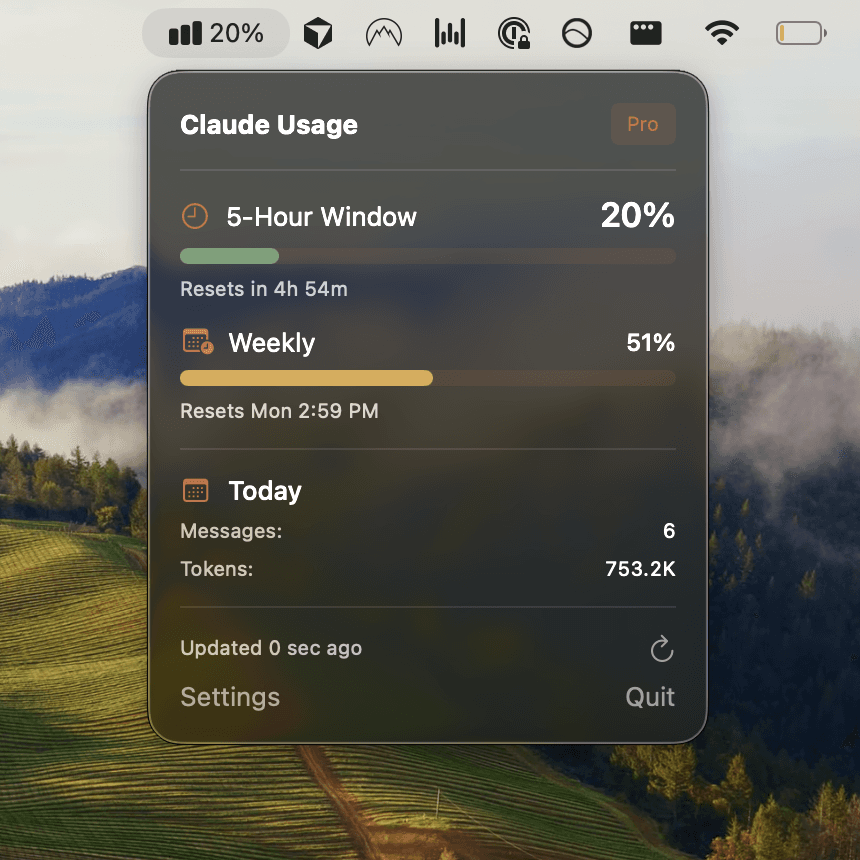
Get Usagebar for macOS to monitor Claude Code usage directly from your menu bar. Usagebar sends smart alerts at 50%, 75%, and 90% of your limit, stores credentials securely in macOS Keychain, and shows you exactly when your usage window resets. The app uses a flexible pay-what-you-want pricing model with a free option for students, so you can start monitoring immediately without risk.
Troubleshooting Common Setup Issues
Command not found: claude
If Terminal doesn't recognize the claude command after installation, your shell needs to reload its configuration. Try:
exec $SHELL
Or close and reopen Terminal entirely. If the issue persists, verify the binary exists:
ls -la ~/.local/bin/claude
Authentication Fails in Browser
Ensure you're using an up-to-date browser and that cookies are enabled. If the authentication tab doesn't appear, try starting Claude Code with a specific project:
cd ~/your-project && claude
Ripgrep Search Not Working
ripgrep is usually included with Claude Code, but if search fails, you may need to install it manually. On macOS with Homebrew:
brew install ripgrep
Updating Claude Code
Native installations auto-update in the background. If you're on Homebrew, run:
brew upgrade claude-code
Or update manually with any installation method:
claude update
Key Takeaways
- Use the native installer (
curl -fsSL https://claude.ai/install.sh | bash) for the fastest setup with auto-updates - Verify requirements: macOS 13+, 4 GB RAM, Claude Pro or Max subscription
- Authenticate with your Claude.ai account on first run
- Monitor your monthly usage limit with
/usageor Usagebar to avoid mid-project lockouts - Keep Claude Code updated for security fixes and new features
- Run
claude doctorto diagnose installation or configuration problems
Related Resources
Never Get Locked Out Mid-Task Again
Never hit your usage limits unexpectedly. Usagebar lives in your menu bar and shows your 5-hour and weekly limits at a glance.
Get Usagebar$9 — one-time, lifetime updates