What to Do When Claude Code Rate Limit Is Hit: Prevention & Solutions
In this article
- Why Claude Code Rate Limits Happen
- What Happens When You Hit the Limit
- How to Check Your Usage Before Hitting the Limit
- Proven Strategies to Stay Under Your Limit
- Why Usagebar Prevents Rate Limit Frustration
- Quick Reference: Rate Limit Solutions by Plan
- The Hidden Cost of Rate Limit Surprises
- Key Takeaways
- Get Usagebar
When Claude Code hits its rate limit, you get locked out for five hours — right when you're in the flow. The culprit is a rolling window system that tracks both your short-term activity bursts and weekly compute consumption. Pro plans allow roughly 45 prompts per five-hour window, and once you hit the ceiling, existing threads become read-only and new requests fail. Usagebar prevents this friction by showing exactly when your usage window resets and alerting you at 50%, 75%, and 90% consumption, so you stay in control before hitting the limit.
- 5-hour rolling window governs short-term rate limits across Claude and Claude Code
- Weekly usage cap provides a second control layer for total compute consumption
- Pro tier: ~45 prompts per window; Max tier: 5x more capacity
Why Claude Code Rate Limits Happen
Claude Code shares usage with the web interface — every prompt, whether you're chatting on claude.ai or running Claude Code in your editor, counts against the same monthly limit. When you're deep in development work, it's easy to exceed your allocation without realizing it. Both Pro and Max plans enforce usage limits that apply across both tools, creating a unified pool rather than separate buckets.
The rate limit operates on two layers: a five-hour rolling window for burst protection (preventing excessive concurrent requests) and a weekly consumption cap for overall compute limits. Neither resets on demand — you have to wait it out or pay extra.
What Happens When You Hit the Limit
The moment you exceed your allocation, Claude Code displays an error message indicating the window has expired. Your threads go read-only, meaning you can review or copy existing code but cannot send new prompts. Users report frustration when both the web portal and Claude Code show conflicting usage percentages — this inconsistency has led to unexpected lockouts.
You face three immediate options:
- Wait for reset: Pro plans reset every five hours; check your exact reset time via the
/usagecommand or claude.ai/settings/usage - Upgrade your plan: Switch from Pro to Max (5x capacity) or Max to Max 20x for the current month
- Enable extra usage: Pay as you go through your subscription or switch to Claude API credits with separate billing
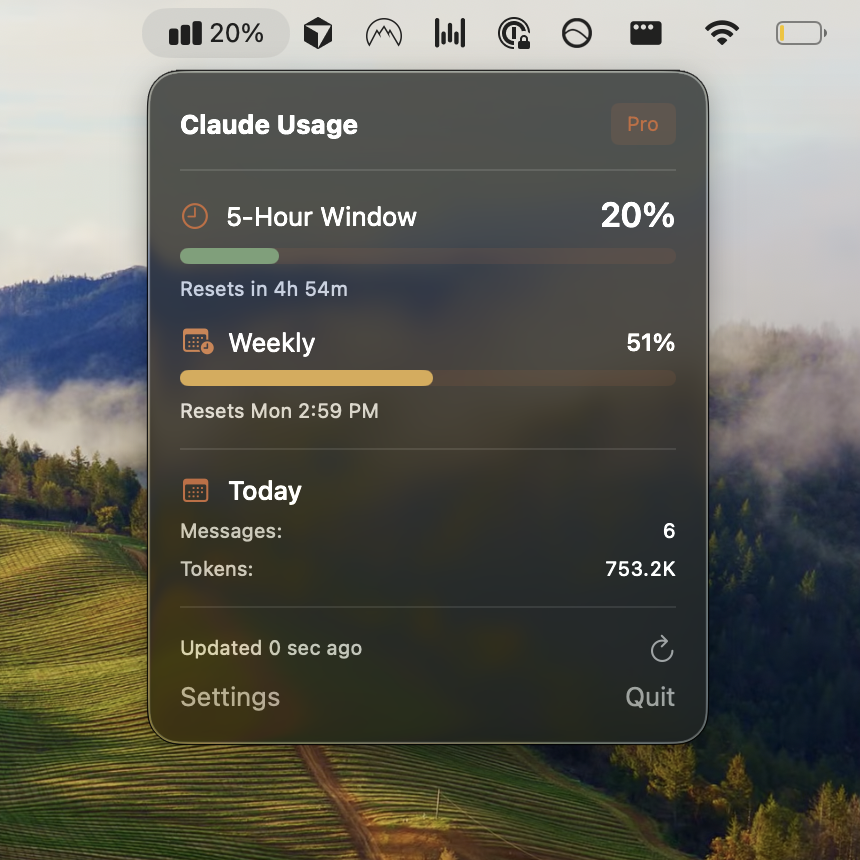
The most developer-friendly solution is knowing exactly when your window resets. Usagebar shows your reset time in the macOS menu bar, eliminating the guess-and-check approach of manually checking the CLI or web interface.
How to Check Your Usage Before Hitting the Limit
Prevention beats firefighting. Check your current usage through three methods:
- Claude Code CLI: Run
/usageto see your current percentage and window expiry time - Web interface: Visit claude.ai/settings/usage for session and weekly progress indicators
- Usagebar app: Real-time monitoring in your macOS menu bar with smart alerts at 50%, 75%, and 90%
Anthropic recommends batching related questions into single messages, being specific and concise, and using project caching to avoid redundant consumption. However, even with perfect discipline, you'll eventually approach your limit during intensive coding sessions.
Proven Strategies to Stay Under Your Limit
Plan Before You Prompt
Write out your requirements completely before sending a message. Include full code snippets, complete context, and detailed specifications. This reduces follow-up requests that waste your allocation.
Use Project Caching
When you upload documents or files to a Claude project, they're cached for reuse — only new or uncached portions count against your limits. This is invaluable if you're working with the same reference materials repeatedly.
Batch Similar Requests
Instead of asking five separate questions, combine them into one message with clear labels. This cuts your overhead and keeps you focused on core work rather than context switching.
Know Your Reset Window
Understanding the difference between your 5-hour rolling window and weekly limit helps you plan strategically. If you're approaching your weekly cap but have a 5-hour window reset coming soon, you can pace yourself.
Why Usagebar Prevents Rate Limit Frustration
Manually checking /usage breaks your flow. Usagebar lives in your macOS menu bar, showing your current usage percentage and exact reset time at a glance. Smart notifications alert you at 50%, 75%, and 90% consumption, giving you time to adjust strategy before hitting the wall.
The app securely stores your Claude credentials using macOS Keychain — no cloud syncing, no account creation required. Install it, authenticate once, and it runs invisibly while you work. For students and individual developers, Usagebar offers a pay-what-you-want model with a free option, making it accessible regardless of budget.
Instead of discovering you're locked out mid-PR or feature sprint, you'll see a notification and have clear choices: pace your usage, upgrade your plan, or enable extra billing. You stay in control.
Quick Reference: Rate Limit Solutions by Plan
Pro Plan Users
- Upgrade to Max for 5x capacity mid-month
- Wait 5 hours for rolling window reset
- Enable extra usage pay-as-you-go
- Use Usagebar to monitor usage and get advance warning
Max Plan Users
- Upgrade to Max 20x for additional headroom
- Wait for weekly reset (typically Sundays or Mondays depending on your timezone)
- Switch to API pay-as-you-go billing as backup
- Track exactly when your limit resets with Usagebar
Important: If you have an ANTHROPIC_API_KEY environment variable set, Claude Code will use that for API authentication instead of your subscription, resulting in separate charges. Disable it to stay on your subscription.
The Hidden Cost of Rate Limit Surprises
A five-hour lockout at the wrong time costs more than just frustration. You lose momentum on feature work, context-switch out of flow, and potentially miss deadlines. The time cost of jumping between tools, manually checking usage, and managing upgrades compounds quickly.
Developers who use Usagebar report staying in flow longer because they never hit the limit unexpectedly. The app's transparency about when windows reset removes the uncertainty, turning usage management into something you think about proactively rather than reactively.
Key Takeaways
- Claude Code rate limits are a five-hour rolling window per plan tier — not manually resettable
- Check your usage via
/usagecommand, claude.ai/settings/usage, or Usagebar - Prevent lockouts by batching requests, using project caching, and planning prompts carefully
- Explore Claude Code slash commands to maximize efficiency and reduce wasted prompts
- Usagebar's smart alerts at 50%, 75%, and 90% give you time to adjust before hitting limits
- Upgrade plans mid-month (Pro to Max) or enable extra usage if you need immediate overflow capacity
Get Usagebar
Download Usagebar instantly and stop worrying about surprise rate limit lockouts. The app works with macOS Keychain for secure credential storage, shows real-time usage in your menu bar, and alerts you before you hit the wall. Available on a pay-what-you-want basis with a free tier for students.
Never Get Locked Out Mid-Task Again
Never hit your usage limits unexpectedly. Usagebar lives in your menu bar and shows your 5-hour and weekly limits at a glance.
Get Usagebar$9 — one-time, lifetime updates