How to Do Form Validation on Claude Code
In this article
Claude Code can generate, review, and iterate on form validation logic for any stack: plain HTML, React, Vue, or schema-based libraries like Zod and Yup. Describe your form fields and constraints in plain language, and Claude writes the validation layer. Best suited for developers who want to stay in flow without leaving the terminal. The main trade-off is that complex cross-field rules need precise prompting to get right the first time.
- Claude Code handles both client-side and server-side validation patterns
- Works with React Hook Form, Zod, Yup, native HTML5 constraints, and custom validators
- Use
/clearbetween unrelated tasks to keep context focused on your form
What is form validation in Claude Code?
Form validation in Claude Code means using the AI coding agent to write, test, and refine the logic that checks user input before it reaches your backend. You interact through the terminal, describe what you need, and Claude generates the code inline in your editor context. There is no separate browser window, no switching to documentation tabs, no copy-paste cycle.
According to the Claude Code slash commands reference, you can use commands like /clear to reset context and /memory to persist project-wide conventions, which matters a lot when you want consistent validation patterns across a multi-step form.
How to prompt Claude Code for form validation
The quality of the output depends heavily on how you frame the prompt. Vague requests produce boilerplate. Specific requests produce production-ready code.
Basic pattern: describe fields and rules
Start with a direct description of the form and its constraints:
Add form validation to my signup form. Fields: email (required, valid format), password (required, min 8 chars, at least one number), confirm password (must match password). Use React Hook Form with Zod.
Claude will scaffold the Zod schema, the useForm hook configuration, and the inline error message components in one pass. If you are working in plain HTML, swap the last sentence: "Use native HTML5 validation with custom error messages in vanilla JS."
Iterate with follow-up prompts
Claude Code keeps the conversation context across turns in the same session. After the initial generation, you can refine:
- "Add async validation for the email field that checks uniqueness via
/api/check-email" - "Show the error only after the user blurs the field, not on every keystroke"
- "Extract the Zod schema to a separate
schemas/auth.tsfile"
Each follow-up builds on the previous code in context. This is the core workflow for staying in flow: no copy-paste between tools, no context switching.
Use CLAUDE.md to set project-wide conventions
If your project always uses Zod + React Hook Form, define that once in your CLAUDE.md file so you never have to repeat it. As explained in the CLAUDE.md examples guide, this file acts as persistent instructions for every Claude Code session in that repo.
# Validation conventions
- Always use Zod for schema validation
- Always use React Hook Form for form state
- Show inline errors below each field using the `<p className="error">` pattern
- Never use `alert()` for validation feedback
With this in place, every form validation request automatically follows your conventions without spelling them out each time.
How to validate forms across different stacks
React with Zod and React Hook Form
Prompt: "Create a contact form with React Hook Form and Zod. Fields: name (required), email (required, email format), message (required, max 500 chars). Show character count for message."
Claude will generate the schema, resolver configuration, and JSX with accessible error states. If you need to see what commands are available mid-session, check the full Claude Code slash commands list for shortcuts like /diff to review changes before accepting.
HTML5 native validation
For projects without a framework: "Add validation to this HTML form using the Constraint Validation API. Show custom error messages styled with CSS, not browser defaults."
Claude understands the setCustomValidity and reportValidity APIs and will generate the event listeners alongside the HTML attributes.
Server-side validation with Node/Express
Prompt: "Add server-side validation to this Express POST handler using Zod. Return structured error objects with field names and messages that match the frontend error format."
This is useful for ensuring your backend validation mirrors your frontend schema, a common requirement for APIs consumed by mobile clients as well as the web form.
Python with Pydantic
Claude Code is not limited to JavaScript. "Add Pydantic validation to this FastAPI endpoint. Fields: username (3-30 chars, alphanumeric only), age (integer, 18-120)." The Python development guide covers more patterns for backend validation workflows.
Useful slash commands for form validation workflows
These commands from the Claude Code slash commands documentation are particularly helpful during form validation work:
/clear: Reset context when switching between unrelated forms or components. Keeps the model focused on the current file./memory: View and edit persisted instructions, including the validation conventions you have set./review: Ask Claude to review the validation logic it just generated for edge cases and security issues (e.g., missing sanitization, XSS vectors in error messages).
You can also check usage at any point with /usage directly in the Claude Code terminal, so you know how much of your session budget you have left before hitting a limit.
Checking usage so a form validation session doesn't get cut short
Form validation can involve several back-and-forth iterations, especially for complex multi-step forms. Each turn consumes tokens from your Claude usage limits. Running out mid-session means a 5-hour lockout, right when you are in the middle of debugging async validation or cross-field dependency rules.
You can check your remaining usage with the /usage command inside Claude Code, or by visiting claude.ai/settings/usage. But both require you to leave the terminal context.
Usagebar keeps your Claude Code usage visible in the macOS menu bar at all times, with smart alerts at 50%, 75%, and 90% of your limit. You see exactly how much headroom you have before starting a long validation task, and you know precisely when the window resets so you can plan your next session. It stores credentials securely in the macOS Keychain, costs nothing for students, and uses a pay-what-you-want model for everyone else.
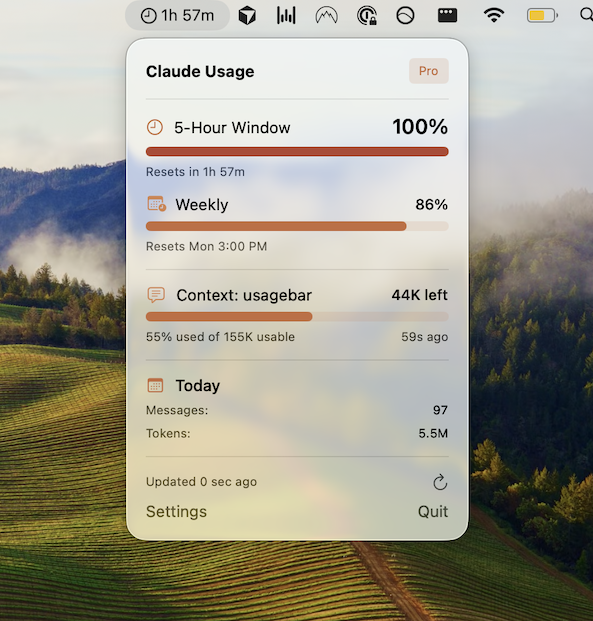
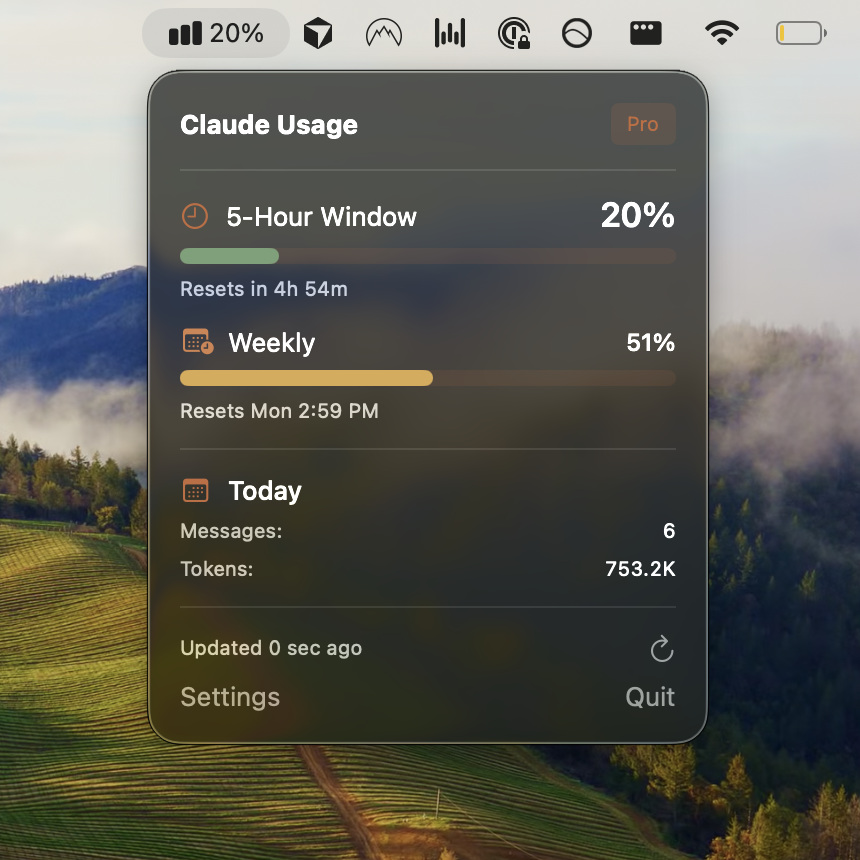
If you are regularly running long Claude Code sessions for UI work like form validation, knowing your reset time matters as much as the validation logic itself. The guide to Claude Code usage reset times explains how the 5-hour rolling window works.
Get Usagebar: instant download, flexible pricing, always visible in your menu bar.
Key takeaways
- Describe your fields and validation rules explicitly in your prompt: type, required/optional, length, format, and cross-field dependencies.
- Name the library you want (Zod, Yup, React Hook Form, Pydantic) so Claude does not guess.
- Use
CLAUDE.mdto store your project's validation conventions once and reuse them across sessions. - Use
/clearwhen switching between unrelated forms to keep context sharp. - Iterate with natural follow-ups: blur behavior, async checks, error message copy, accessibility attributes.
- Monitor usage with
/usage, claude.ai/settings/usage, or Usagebar so a long iteration session does not hit a wall at the worst moment.
Sources
Never Get Locked Out Mid-Task Again
Never hit your usage limits unexpectedly. Usagebar lives in your menu bar and shows your 5-hour and weekly limits at a glance.
Get Usagebar$9 — one-time, lifetime updates