How to Do Python Development on Claude Code: A Complete Guide
In this article
- What is Claude Code and how does it work for Python?
- Getting started with Python on Claude Code
- Using slash commands for Python development
- Managing your usage allocation while coding Python
- What happens when you hit your usage limit?
- Optimizing Python development workflows on Claude Code
- Staying productive without interruption
- Key takeaways
- Get Usagebar
- Sources
Python development on Claude Code accelerates your workflow by delegating complex coding tasks while maintaining full control and transparency. Claude Code's terminal-based interface lets you write, test, and debug Python scripts directly from your command line, without leaving your development environment. Pro and Max plans offer shared usage allocations across all Claude tools, with real-time monitoring to prevent unexpected interruptions during critical work.
Best for: Python developers, data scientists, and engineers who want AI assistance without context switching.
Key trade-offs: Usage is shared across Claude and Claude Code, so heavy development can consume your allocation quickly. Monitoring your usage prevents the frustration of hitting limits mid-session.
Key data points:
- Claude Code works across Pro, Max 5x, and Max 20x plans with shared usage allocation
- Developers using best practices can optimize up to 5–10 minutes per development task
- Warning alerts trigger at 50%, 75%, and 90% usage to help you plan ahead
What is Claude Code and how does it work for Python?
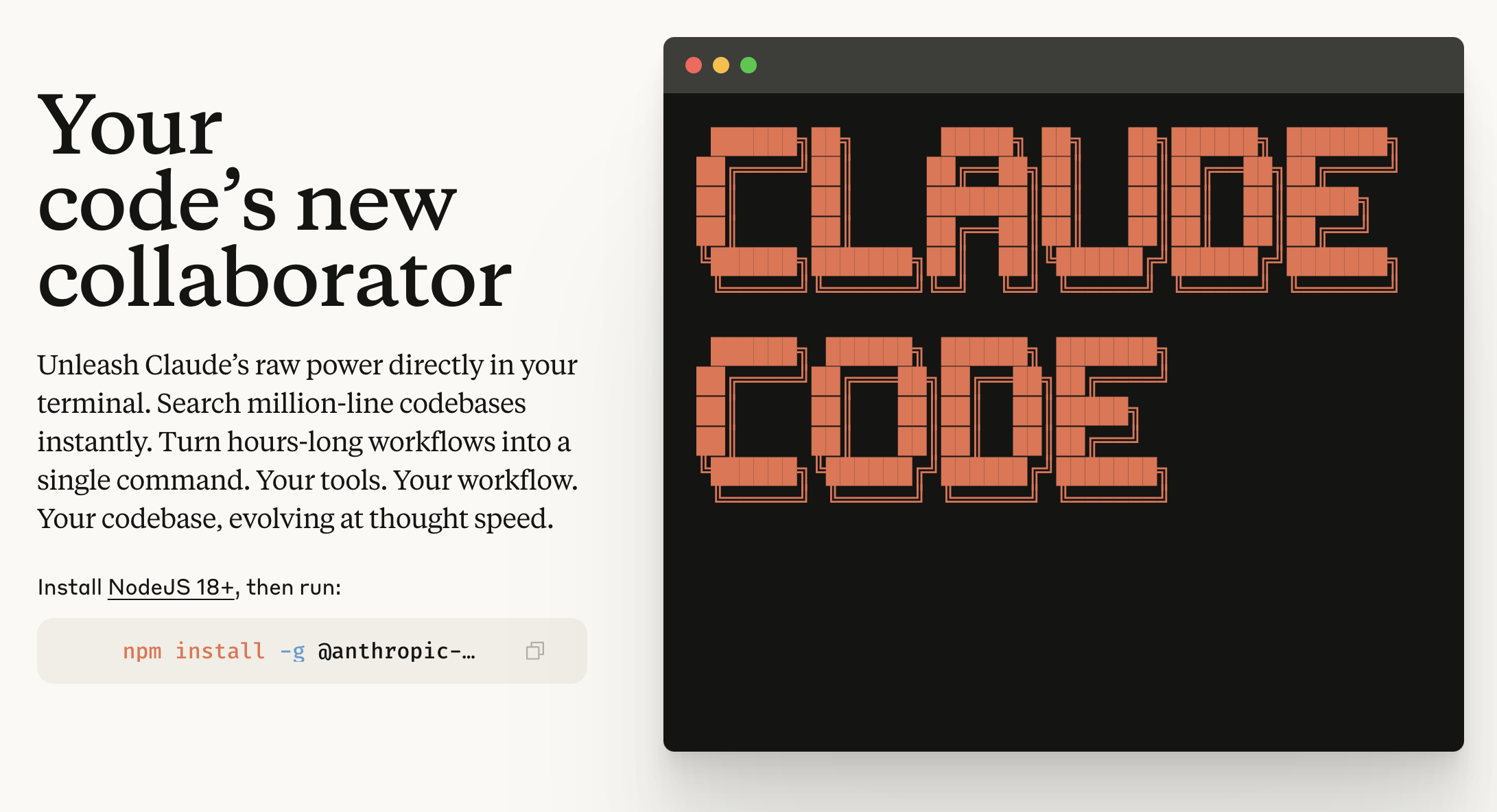
Claude Code is a command-line tool providing terminal-based access to Claude models, allowing you to delegate complex coding tasks while maintaining control. Instead of switching between your editor, browser, and chat interface, Claude Code lives in your terminal, making it ideal for Python workflows.
For Python development specifically, Claude Code excels at:
- Writing, refactoring, and debugging Python scripts directly in your environment
- Test-aware code generation that considers existing test suites
- Reasoning-heavy tasks like architecture reviews and optimization
- Batch processing and automation script development
The interface integrates seamlessly with your existing Python setup—whether you're using virtualenvs, Poetry, or pip. Developers report integrating Claude Code into their workflow in as little as 2 hours, with immediate productivity gains.
Getting started with Python on Claude Code
Start by ensuring you have the Claude Code CLI installed on your system. You'll need a Pro or Max plan subscription to access Claude Code—both plans include usage allocation shared across web and terminal tools.
Installation guides are available for macOS and Linux, and the setup takes just a few minutes. Once installed, you can initialize a new Python project or navigate to an existing one and start using Claude Code immediately.
After setup, familiarize yourself with the basic workflow:
- Navigate to your Python project directory in terminal
- Start Claude Code and describe your task—e.g., "Write a Python script to process CSV files"
- Review Claude's generated code before it executes
- Iterate and refine based on test results or your feedback
This workflow keeps you in flow—no jumping between tabs, no context switching, just continuous development.
Using slash commands for Python development
Claude Code includes powerful slash commands that enhance Python development. These commands help you perform specific tasks without retyping instructions each time.
Common slash commands for Python developers include:
/test– Run your test suite and get Claude's analysis of failures/fix– Automatically fix errors based on test output or linting results/refactor– Improve code structure, performance, or readability/docs– Generate or update docstrings and comments/usage– Check your current usage allocation (critical for managing quota)
The /usage command is particularly valuable for Python developers. It shows your remaining allocation across Pro or Max plans, helping you avoid the dreaded mid-session lockout when you're wrapping up a PR or debugging production code.
Managing your usage allocation while coding Python
Claude Code usage is shared across all Claude tools—web, desktop, mobile, and terminal. This means heavy Python development can consume your allocation faster than expected. Staying aware of your usage prevents interruptions.
You can check your usage in three ways:
- Run
claude code /usagein your terminal - Visit claude.ai/settings/usage in your browser
- Use a dedicated tool like Usagebar to monitor from your macOS menu bar
Best practices for managing Claude usage include providing complete context upfront and batching related requests together. For Python specifically, send complete code snippets and test files in one conversation rather than iterating back-and-forth multiple times.
Consider this scenario: You're debugging a production Python service and hit your 75% usage warning. With Usagebar visible in your menu bar, you immediately know how many minutes of usage remain. You can decide whether to wrap up the session or upgrade, avoiding the frustration of a lockout mid-fix.
What happens when you hit your usage limit?
If you reach your allocation during active Python development, Claude Code becomes unavailable until your usage window resets. Most plans reset monthly, though the exact timing depends on your subscription start date.
You can determine your reset date through your Claude settings or using Usagebar. Once you know your reset schedule, you can plan heavy development work accordingly.
If you hit limits unexpectedly:
- Upgrade immediately: Switch from Pro to Max 5x for 5x higher allocation, or to Max 20x for the highest tier
- Enable extra usage: Pay on-demand to continue without interruption
- Switch to API billing: For high-volume work, direct API usage may be more economical
- Wait for reset: If the reset is days away, you may choose to pause Python development temporarily
The key is visibility. Real-time monitoring prevents the scenario where you're in the middle of wrapping up a critical PR and suddenly face a 5-hour lockout.

Optimizing Python development workflows on Claude Code
To maximize productivity and minimize usage consumption, adopt these practices:
1. Provide context upfront Include your Python version, installed dependencies, existing code structure, and test framework in your initial request. This reduces back-and-forth and helps Claude generate working code on the first try.
2. Use test-driven interactions
Pair Claude Code with your test suite. Use the /test command to validate generated code immediately, reducing debug cycles and wasted attempts.
3. Batch related tasks If refactoring multiple functions or adding related features, group them into one session rather than separate requests. Each request consumes usage, so batching is more efficient.
4. Leverage slash commands strategically
The /refactor, /fix, and /docs commands are purpose-built to solve specific problems. Using them instead of generic requests saves time and usage.
5. Monitor your usage in real-time
Check /usage periodically during deep development sessions. Usagebar brings your usage quota directly to your macOS menu bar, eliminating the need to check settings or run commands—staying in flow while staying informed.
Staying productive without interruption
Python development requires sustained focus. Context switching to check usage or navigate through browser settings breaks flow and costs time. The frustration multiplies when you're close to finishing a feature and suddenly hit a lockout.
Tools like Usagebar make Claude Code usage transparent. With smart notifications at 50%, 75%, and 90% usage thresholds, you'll always know where you stand. Setup takes minutes, and the free tier for students means everyone can stay informed.
The goal is simple: write Python with confidence, knowing exactly how much usage you have and when your window resets. No surprises. No lockouts. Just flow.
Key takeaways
- Claude Code brings AI assistance directly to your terminal, eliminating context switching during Python development
- Usage is shared across all Claude tools, so monitor your allocation to prevent mid-session lockouts
- The
/usagecommand and dedicated monitoring tools help you stay aware of your remaining quota - Provide complete context upfront, batch tasks, and use slash commands to optimize usage efficiency
- Warning alerts at 50%, 75%, and 90% usage give you time to plan before hitting limits
- Real-time monitoring keeps you in flow while keeping you in control
Get Usagebar
Stop checking your usage manually. Get Usagebar to monitor your Claude Code allocation directly from your macOS menu bar. Instant visibility, flexible pricing, and a free tier for students. Download now and stay productive without surprises.
Sources
- Claude Support: Using Claude Code with Your Pro or Max Plan
- Claude Support: Usage Limit Best Practices
- Medium: How to Use Claude with Python for Coding in 2026
- Python in Plain English: Customizing Claude Code for Python Development
- DataCamp: Claude Code: A Guide With Practical Examples
- Ryz Labs: How to Integrate Claude Code Into Your Development Workflow in 2 Hours
Never Get Locked Out Mid-Task Again
Never hit your usage limits unexpectedly. Usagebar lives in your menu bar and shows your 5-hour and weekly limits at a glance.
Get Usagebar$9 — one-time, lifetime updates