How to Do Unused Import Removal on Claude Code
In this article
- What is unused import removal and why does it matter?
- How to remove unused imports using Claude Code step by step
- Language-specific prompts for unused import removal
- How to automate unused import cleanup with a slash command
- Combining unused import removal with broader code cleanup
- Monitor your usage so cleanup sessions don't get cut short
- Key takeaways
- Sources
To remove unused imports in Claude Code, open your terminal in the project directory, launch claude, and prompt it directly – for example: "Remove all unused imports from this file" or "Clean up unused imports across the whole project." Claude reads, edits, and verifies the changes without leaving your terminal. No separate linter plugin or IDE restart required. Works across TypeScript, Python, Go, Rust, and most other languages.
- Works on a single file or an entire codebase in one pass
- Claude understands language-specific import semantics (e.g., side-effect imports in JS/TS)
- Changes are reviewable before commit – Claude explains each removal
What is unused import removal and why does it matter?
Unused imports are statements that pull in a module, package, or symbol that is never actually referenced in the file. Over time they accumulate through refactoring, copy-paste, and iterative feature work. The consequences are real:
- Bundle size: In JavaScript/TypeScript projects, tree-shaking isn't always perfect. Dead imports can inflate final bundles.
- Compile times: Compilers and type checkers (TypeScript, mypy, rustc) still parse and resolve unused imports, adding overhead.
- Code clarity: A reader scanning imports gets a false map of a file's dependencies.
- Linter noise: Tools like ESLint (
no-unused-vars), Pylint, andgolangci-lintflag these as warnings or errors, cluttering CI output.
Cleaning them up is a low-risk, high-signal task – and exactly the kind of mechanical code chore that Claude Code handles well.
How to remove unused imports using Claude Code step by step
Step 1: Start Claude Code in your project root
Navigate to your project directory and start a session:
cd my-project
claude
Claude Code reads your project structure automatically, so it understands file relationships before touching anything.
Step 2: Scope your request – single file or whole project
For a single file:
> Remove all unused imports from src/utils/parser.ts
For a directory or entire project:
> Find and remove all unused imports across the src/ directory
For a more conservative pass that explains before changing:
> List all files with unused imports and explain what you'd remove before making any changes
Step 3: Review Claude's proposed changes
Claude will show you the diff for each file before applying it. This is important for JavaScript and TypeScript where some imports are kept intentionally for their side effects (e.g., import './polyfills' or import 'reflect-metadata'). Tell Claude which ones to preserve:
> Keep any imports that are only used for side effects, remove the rest
Step 4: Run your linter or type checker to confirm
After Claude applies changes, run your existing toolchain inside the same session:
> Run eslint src/ and fix any remaining issues
Claude can execute the linter, read the output, and fix anything it missed in one loop.
Step 5: Commit the cleanup
Use Claude Code's built-in git awareness to stage and commit:
> Stage all changes and create a commit with message "chore: remove unused imports"
Language-specific prompts for unused import removal
Different languages have different conventions. Here are prompts tuned per language:
| Language | Prompt | Notes |
|---|---|---|
| TypeScript / JavaScript | Remove unused imports, but keep side-effect-only imports | Handles ESM and CommonJS require() |
| Python | Remove unused imports and fix any resulting F401 warnings | Works with isort conventions too |
| Go | Fix all unused import errors across the package | Go treats unused imports as compile errors – critical fix |
| Rust | Remove all unused use statements flagged by the compiler | Claude can read cargo check output directly |
| Java / Kotlin | Clean up unused import statements in all .java files under src/ | Pairs well with a Maven/Gradle build check |
How to automate unused import cleanup with a slash command
If you run this cleanup regularly, you can define a custom slash command so you never have to retype the prompt. Create a file at .claude/commands/clean-imports.md:
Find and remove all unused imports across the entire project.
Preserve any imports kept for side effects only.
Run the linter after changes and fix any new issues introduced.
Stage all changes with git.
Then invoke it any time with:
/clean-imports
This is especially useful on larger codebases where import drift accumulates across many contributors. According to Anthropic's Claude Code documentation, custom slash commands are stored per project and shared with any team member using Claude Code in that repo.
Combining unused import removal with broader code cleanup
Unused imports rarely travel alone. They're usually a symptom of a broader cleanup opportunity. You can chain tasks in a single Claude Code session:
> Remove unused imports, then remove any variables declared but never used,
  then run the full test suite to confirm nothing broke
This kind of comprehensive code cleanup used to require switching between your editor, terminal, and linter output. In Claude Code, it's a single conversation loop.
The catch: these sessions can run long. If you're mid-cleanup and your usage window resets, Claude Code stops mid-task – and you're left with a half-clean codebase and a 5-hour wait before you can resume. That's the exact frustration Usagebar was built to prevent.
Monitor your usage so cleanup sessions don't get cut short
Unused import removal across a large project with linting verification can consume a meaningful chunk of your Claude Code usage window, especially if Claude runs the linter, reads errors, and iterates. A session that processes 200+ files, runs ESLint, and handles edge cases gets expensive quickly.
You can check your remaining usage at any point by typing /usage inside Claude Code, or by visiting claude.ai/settings/usage. But both require you to leave your flow and context-switch.
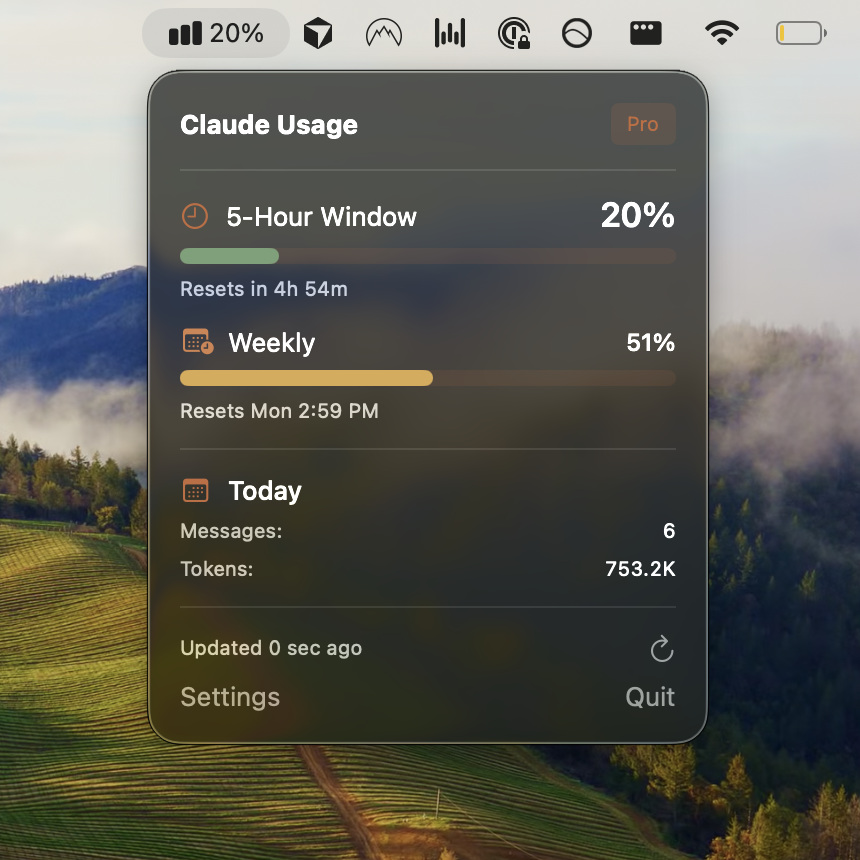
Usagebar keeps your Claude Code usage visible in the macOS menu bar at all times – no context switching required:
- Alerts at 50%, 75%, and 90% of your usage window so you can wrap up before hitting the cap
- Shows the exact time until your usage window resets, so you can schedule a large cleanup for when you have a full window
- Credentials stored securely in macOS Keychain – never in plaintext
- Pay what you want pricing, with a free option for students
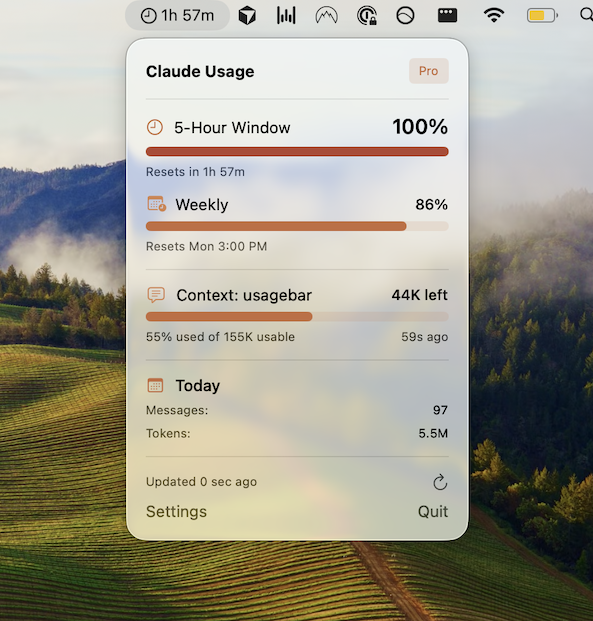
Starting a multi-file cleanup task blind – with no idea how close you are to your limit – is how you end up locked out for 5 hours with a half-refactored codebase. Get Usagebar and know exactly where you stand before you start.
Key takeaways
- Prompt Claude Code with "Remove all unused imports from [file or directory]" to start immediately.
- Specify side-effect imports to preserve, especially in TypeScript/JavaScript projects.
- Chain the cleanup with a linter run in the same session to verify correctness.
- Save the workflow as a
/clean-importscustom slash command for repeat use. - Check your usage before starting large multi-file sessions – or use Usagebar to monitor it passively from your menu bar.
Sources
- https://support.claude.com/en/articles/11145838-using-claude-code-with-your-pro-or-max-plan
- https://support.claude.com/en/articles/9797557-usage-limit-best-practices
- https://usagebar.com/blog/claude-code-slash-commands-list
- https://usagebar.com/blog/how-to-do-code-cleanup-on-claude-code
- https://usagebar.com/blog/when-does-claude-code-usage-reset
Never Get Locked Out Mid-Task Again
Never hit your usage limits unexpectedly. Usagebar lives in your menu bar and shows your 5-hour and weekly limits at a glance.
Get Usagebar$9 — one-time, lifetime updates