Switching from Cursor to Claude Code CLI: Key Differences & Migration Guide
In this article
- What is Claude Code CLI and how does it differ from Cursor?
- Key advantages of migrating to Claude Code CLI
- When to use Cursor vs Claude Code CLI
- How to migrate from Cursor to Claude Code CLI
- Monitoring usage: Claude Code vs Cursor
- Common migration challenges and solutions
- Best practices for Claude Code CLI workflows
- The verdict: Is Claude Code CLI right for you?
- Sources
Moving from Cursor to Claude Code CLI is straightforward: both tools share nearly identical workflows, require no new patterns to learn, and offer distinct advantages depending on your coding needs. Claude Code delivers higher-quality, first-try code generation results (approximately 30% fewer code reworks), operates as a lightweight CLI without IDE dependencies, and integrates shared usage limits with your Pro or Max subscription. However, Cursor excels as a full IDE with native visibility and control. For developers prioritizing speed, cost efficiency, and the ability to stay focused in the terminal, Claude Code CLI is the superior choice. Best practice: use Usagebar to monitor your usage across both platforms and prevent unexpected 5-hour lockouts that disrupt critical work.
What is Claude Code CLI and how does it differ from Cursor?
Claude Code is a command-line interface that runs directly in your terminal, while Cursor is a full IDE built on top of VS Code. Claude Code is editor-agnostic—it doesn't require VS Code or any IDE to be open, making it lightweight and perfect for developers who prefer terminal workflows. You invoke Claude Code tasks directly from the command line, and responses come back faster than Cursor in many scenarios.
Claude Code produces less overall code rework by approximately 30% and gets things right in the first or second iteration, whereas Cursor with Claude models still tends to generate higher code churn. This means fewer iterations to reach production-ready code.
Key advantages of migrating to Claude Code CLI
Editor independence and lightweight setup
Claude Code runs anywhere with a terminal. You don't need VS Code open, don't need Cursor's IDE overhead, and don't need to switch mental contexts between your preferred editor and an AI tool. This eliminates friction when you want to move fast on repetitive or exploratory coding tasks.
Unified usage limits and Pro/Max subscription integration
Claude Code integrates directly with your Pro and Max subscriptions, where all activity in both tools counts against the same usage limits. This means your Claude web interface, Claude Code CLI, and other tools share one allocation. You receive warning messages about remaining capacity as you approach limits, and you can check your status with built-in slash commands.
Cost efficiency for high-volume developers
Claude Code typically costs less per task than traditional API calls if you're on a Pro or Max plan. You get predictable monthly bills instead of pay-as-you-go uncertainty. For teams and freelancers running hundreds of coding tasks monthly, this compounds to significant savings.
Higher code quality and faster iterations
Claude Code on average produces less overall code reworks compared to Cursor, delivering higher-quality output on the first or second attempt. This means fewer debugging cycles and faster path to production.
When to use Cursor vs Claude Code CLI
| Use Case | Best Choice | Why |
|---|---|---|
| Terminal-first workflows | Claude Code CLI | No IDE overhead, stay in flow state |
| IDE native visibility & control | Cursor | Full IDE integration, sidebar features |
| Repetitive tasks at scale | Claude Code CLI | Scriptable, cost-efficient, fewer rewrites |
| Complex project understanding | Cursor | File tree visibility, better context |
| Budget-conscious development | Claude Code CLI | Pro/Max subscription, predictable costs |
| Long coding sessions requiring context | Cursor | Persistent context, file state preservation |
How to migrate from Cursor to Claude Code CLI
Step 1: Set up Claude Code with your Pro or Max credentials
Download Claude Code from the command line. Log in with your Claude account credentials (the same ones you use for claude.ai). This automatically links your subscription to the CLI tool.
Step 2: Learn the slash commands
Claude Code uses slash commands to control sessions, clear chat history, and manage context. The most important command for migration is /status or /context, which shows your current usage allocation and tokens consumed in the session.
Step 3: Set up usage monitoring with Usagebar
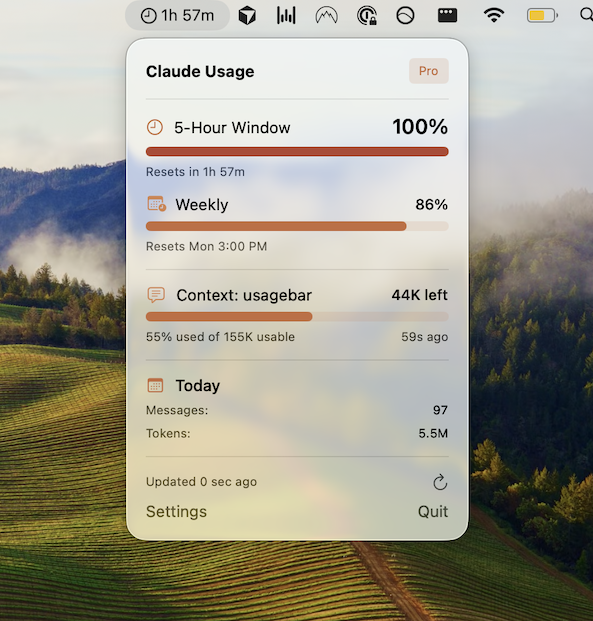
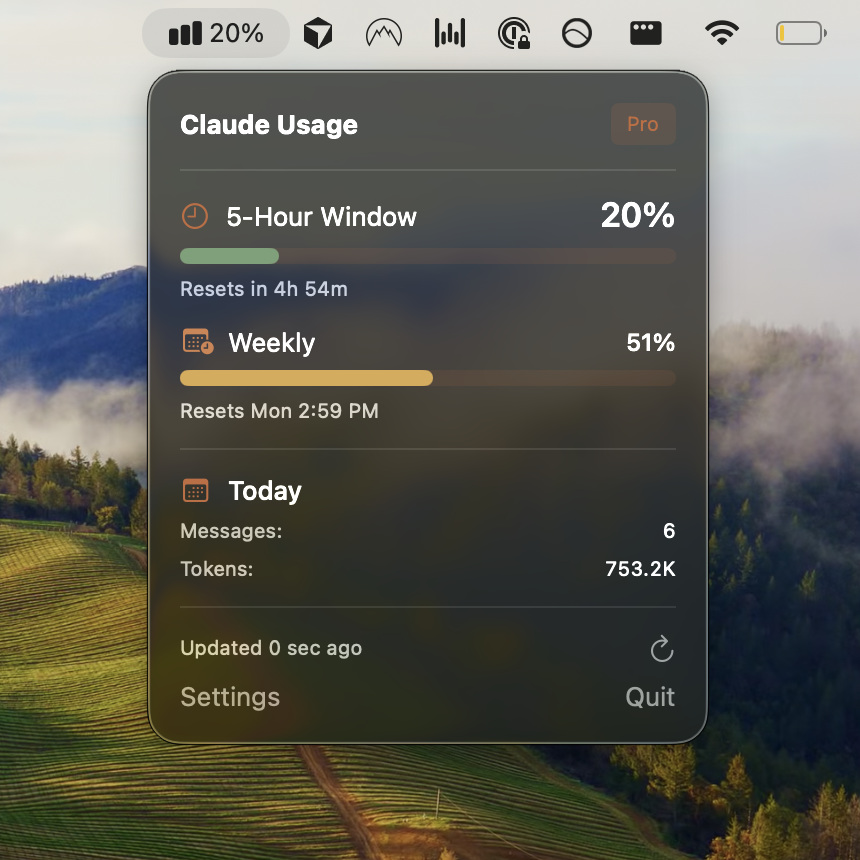
Usagebar sits in your macOS menu bar and shows real-time Claude Code usage limits, including your 50%, 75%, and 90% alert thresholds. This prevents the frustration of hitting a 5-hour lockout mid-sprint. Usagebar securely stores your credentials in macOS Keychain and displays exactly when your usage window resets.
Step 4: Organize sessions and scripts
Unlike Cursor's persistent IDE, Claude Code sessions are more atomic. Organize your workflows into focused scripts or shell aliases that invoke Claude Code with specific prompts. This keeps each task modular and cost-efficient.
Step 5: Run your first task
Start with a simple, well-scoped task. You'll notice faster response times and cleaner output compared to Cursor in many scenarios. Track the results with /context slash command during sessions or tools like ccusage for historical analysis.
Monitoring usage: Claude Code vs Cursor
Cursor operates independently with its own usage system. Claude Code, however, integrates with your Pro or Max subscription where usage is shared across all Anthropic tools. This shared model requires vigilant monitoring to avoid surprises.
- Built-in method: Use the /context or /status slash command to check remaining allocation mid-session
- Real-time dashboard: Usagebar provides a menu bar app showing real-time usage, reset times, and predictive alerts on macOS
- Historical tracking: Tools like ccusage analyze local session data to show usage trends by date or project
- Pro tip: Sessions reset every 5 hours. Plan complex work during the first 2 hours of a new window to maximize available tokens
Common migration challenges and solutions
Challenge: No IDE visibility of project structure
Claude Code is terminal-first, so you lose the file tree and sidebar overview. Solution: Pass your project root explicitly to Claude Code commands, or use shell prompts to read key file structures before invoking the CLI.
Challenge: Understanding usage resets and lockouts
Claude Code usage resets every 5 hours, not daily like Cursor. If you hit your allocation, you face a 5-hour lockout. Solution: Use Usagebar to track your progress toward limits and receive alerts at 50%, 75%, and 90%, ensuring you never face a surprise lockout during critical work.
Challenge: Context carryover between tasks
Cursor maintains persistent context within the IDE. Claude Code sessions are more isolated. Solution: Design modular tasks with explicit context injection (e.g., passing file snippets as input) rather than relying on implicit IDE state.
Challenge: Switching mental models
Claude Code often delivers higher-quality results but requires you to slow down and understand each iteration, whereas Cursor encourages faster, more exploratory workflows. Solution: Embrace Claude Code's focus on quality over speed, and use Cursor for exploratory phases when you need rapid iteration.
Best practices for Claude Code CLI workflows
- Bundle related tasks: Group multiple small code changes into one session to maximize token efficiency
- Use slash commands strategically: Clear chat with /clear between distinct tasks to avoid unnecessary token consumption and context pollution
- Monitor your window: Understand the difference between your weekly limit and 5-hour lockouts; the 5-hour window is the active throttle
- Combine tools for maximum efficiency: Use /context in-session for immediate feedback, ccusage for weekly trend analysis, and Usagebar for real-time menu bar visibility
- Secure credential storage: Usagebar uses macOS Keychain to securely manage your credentials, so your tokens are never exposed in plaintext
- Plan around resets: Schedule heavy work early in your 5-hour window to avoid mid-project lockouts
The verdict: Is Claude Code CLI right for you?
Migrate to Claude Code CLI if you prioritize speed, cost efficiency, terminal-native workflows, and code quality over visual IDE integration. The lightweight setup means you're up and running in minutes. The 30% reduction in code reworks translates to real productivity gains. And the unified subscription model keeps your costs predictable.
Stay in flow state by eliminating context switching between IDEs and tools. Use Usagebar to prevent the frustration of 5-hour lockouts and keep your usage in clear view. The migration from Cursor is painless because there are no new patterns to learn, just faster, cleaner code.
Get Usagebar today for instant download and flexible pricing (including a free option for students). Stay informed about your Claude Code usage every single day.
Sources
Never Get Locked Out Mid-Task Again
Never hit your usage limits unexpectedly. Usagebar lives in your menu bar and shows your 5-hour and weekly limits at a glance.
Get Usagebar$9 — one-time, lifetime updates