Claude Usage Mac Menu Bar: How to Track Your Limits Without Switching Tabs
In this article
- Is there a native Claude menu bar app for usage tracking?
- Why check Claude usage from the menu bar instead of /usage?
- How does Usagebar track Claude usage in the Mac menu bar?
- How do I install Usagebar on Mac?
- What happens when you hit the Claude Code rate limit?
- Key takeaways
- Get Usagebar for your Mac menu bar
- Sources
The fastest way to see Claude usage in your Mac menu bar is Usagebar, a $9 one-time menu bar app that shows your Claude Code 5-hour window, weekly cap, and context usage live, with alerts at 50%, 75%, and 90% so you never get cut off mid-task. It's built for Claude Code Pro and Max users who run long agentic sessions and don't want to keep typing /usage or opening a browser tab to check limits.
- Native macOS menu bar app, no browser tab required
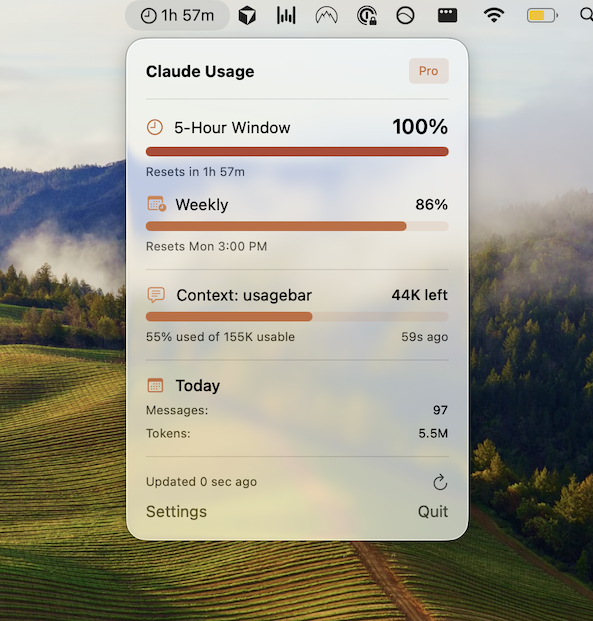
- Tracks three separate limits: 5-hour rolling window, weekly cap, and context window usage
- One-time $9 purchase, no subscription
Is there a native Claude menu bar app for usage tracking?
No. Anthropic does not ship a native macOS menu bar app for Claude Code usage. The only built-in options are the /usage slash command inside the CLI (Claude Code docs) or the web dashboard at claude.ai/settings/usage. Neither lives in your menu bar, so you have to break focus to check them.
Why check Claude usage from the menu bar instead of /usage?
Running /usage interrupts your terminal session and only gives you a snapshot at that moment, not an ongoing view. A menu bar app sits persistently on screen and updates automatically, so you catch the 75% warning before you're deep into a task that gets throttled halfway through.
This matters most on Max plans, where Anthropic enforces both a rolling 5-hour window and a separate weekly cap (Using Claude Code with your Pro or Max plan). Hitting either one stops your session, and the weekly reset time is easy to lose track of if you're only checking sporadically. We cover the reset mechanics in more detail in when does Claude Code usage reset.
How does Usagebar track Claude usage in the Mac menu bar?
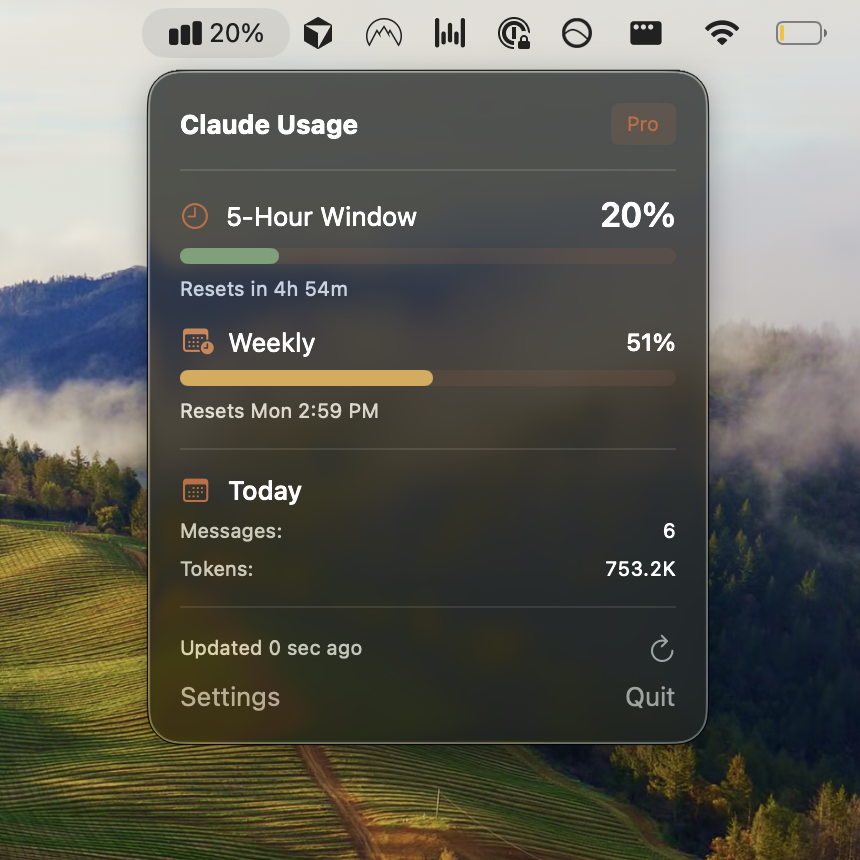
Usagebar runs as a lightweight macOS menu bar icon that polls your Claude Code usage and displays it as a percentage, updating in real time as you work. It tracks three things most dashboards lump together: the 5-hour session window, the weekly cap, and context window consumption per conversation.
| Method | Location | Live updates | Tracks context window | Cost |
|---|---|---|---|---|
/usage command | Terminal | No, manual check | No | Free |
| claude.ai/settings/usage | Browser | No, manual refresh | No | Free |
| Usagebar | Mac menu bar | Yes, automatic | Yes | $9 one-time |
Notifications fire at 50%, 75%, and 90% of whichever limit you're closest to hitting, so you get a warning before Claude Code locks you out mid-refactor. For a deeper look at how to pull usage numbers manually before deciding whether you need a dedicated app, see how do I check my Claude Code usage limits.
How do I install Usagebar on Mac?
Download Usagebar from usagebar.com, open the installer, and grant it permission to read your local Claude Code usage data. The app adds a persistent icon to the macOS menu bar within seconds and starts tracking immediately, no account signup or API key configuration needed beyond what Claude Code already uses locally.
What happens when you hit the Claude Code rate limit?
When you hit either the 5-hour or weekly limit, Claude Code stops responding to new prompts until the window resets, and mid-session work can get interrupted without warning if you weren't watching your usage. We break down what the error looks like and how to work around it in Claude Code rate limit exceeded and Claude Code rate limit hit.
A menu bar display turns that into a non-event: you see the percentage climbing and wrap up or pause before the hard stop, instead of finding out when a prompt silently fails.
Key takeaways
- Anthropic has no native menu bar usage tracker;
/usageand the web dashboard are the only built-in options. - Claude Code Pro/Max plans enforce a 5-hour rolling window plus a separate weekly cap.
- Usagebar adds a live Mac menu bar display with alerts at 50/75/90% for $9 one-time.
- Context window usage per conversation is tracked separately from message limits, and Usagebar surfaces both.
Get Usagebar for your Mac menu bar
If you're running Claude Code daily and tired of guessing when the next rate limit hits, get Usagebar for a one-time $9 and keep your usage visible without leaving your workflow.
Sources
Find Out Before You’re Locked Out, Not After
Checking your usage means stopping what you’re doing to go look. Usagebar keeps your 5-hour and weekly limits in the menu bar while you work, and alerts you at 50%, 75%, and 90% — so a lockout never lands mid-task.
Get Usagebar$9 — one-time, lifetime updates