How to Check Claude Opus 4.6 Usage Limits: Real-Time Monitoring Guide
In this article
- What is Claude Opus 4.6 usage limit?
- How to check your Claude Opus 4.6 usage in 3 ways
- Understanding your 5-hour and weekly reset cycles
- Optimizing your usage before hitting limits
- What happens when you reach your limit?
- Best practices for Claude Code users
- Get instant visibility with Usagebar
- Key takeaways
- Sources
Claude Opus 4.6 operates under shared usage limits across the web interface and Claude Code, resetting every 5 hours with an additional weekly limit to ensure equitable access. The fastest way to check your remaining quota is through Settings > Usage on Claude.ai, the /usage command in Claude Code, or real-time menu bar monitoring with Usagebar. For developers working with Claude Code, knowing exactly when your limits reset prevents workflow interruptions during critical tasks like finalizing PRs or shipping features. Unlike generic alerts, Usagebar provides granular notifications at 50%, 75%, and 90% consumption thresholds, keeping you informed without leaving your terminal.
What is Claude Opus 4.6 usage limit?
Claude Opus 4.6 was Anthropic's flagship reasoning model and remains available on Pro and Max plans with Claude Code. Opus 5 is now the current flagship, and the same usage-limit methods below apply to it. Your usage limit represents the maximum computational resources allocated within a fixed time window. Understanding usage and length limits involves multiple factors: message length, file attachment size, conversation length, tool usage, model choice, and artifact creation.
Pro and Max plans share the same usage pool across Claude.ai and Claude Code, meaning all activity — whether you're chatting on the web or running agent commands — counts against your allocation. Extra usage for paid Claude plans is available for subscribers who need additional capacity beyond their standard allocation.
How to check your Claude Opus 4.6 usage in 3 ways
Method 1: Settings > Usage (Web Interface)
The most straightforward approach. Navigate to claude.ai/settings/usage to see progress bars displaying both your 5-hour session consumption and weekly usage limits. This dashboard updates in real time and shows your remaining capacity clearly.
Method 2: /usage Command (Claude Code)
Open Claude Code and run the /usage command to check your status without switching contexts. This is ideal for developers who want to verify limits mid-workflow without opening a web browser. The command outputs your remaining usage and displays when your next reset occurs.
Method 3: Menu Bar Monitoring (Usagebar)
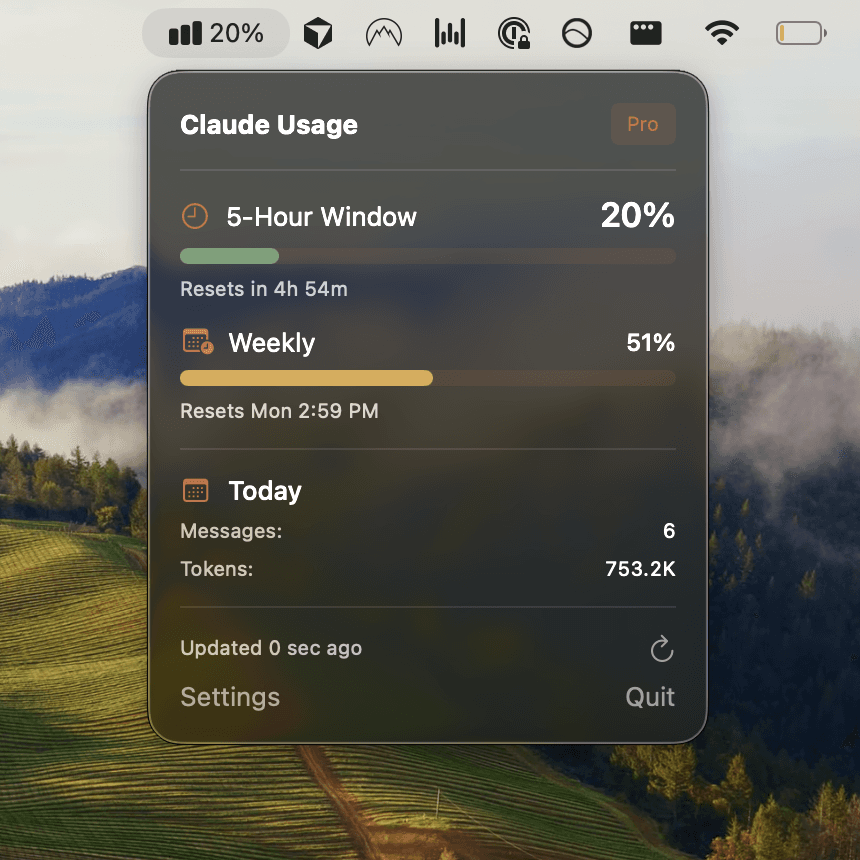
Usagebar sits in your macOS menu bar and syncs with your Claude account via secure Keychain authentication. Unlike manual checks, Usagebar refreshes automatically and provides proactive alerts at 50%, 75%, and 90% consumption thresholds. You'll know immediately when you're approaching limits — before they interrupt your work. This eliminates the frustration of discovering a 5-hour lockout mid-task.
Understanding your 5-hour and weekly reset cycles
Claude Opus 4.6 usage resets every 5 hours on a rolling basis, not at fixed times. This means your allocation refreshes continuously throughout the day — when you used a session 5 hours ago, new capacity becomes available. A secondary weekly limit also applies to prevent abuse while ensuring fair distribution across users. Learn when Claude Code usage resets to plan intensive work during high-allocation periods.
Knowing your exact reset times prevents wasted effort. If you hit your limit with 3 hours remaining in your 5-hour window, waiting 2 more hours gives you additional capacity. Usagebar displays your precise countdown timer in the menu bar, so you never miscalculate reset timing.
Optimizing your usage before hitting limits
Usage limit best practices recommend several strategies to maximize your allocation:
- Plan upfront: Combine related questions into single messages rather than back-and-forth exchanges. Multiple short requests consume more resources than one comprehensive query.
- Use Projects for caching: Upload documents to Claude Projects once. Subsequent references use cached content, consuming far fewer resources than uploading files repeatedly.
- Leverage memory: Paid plan subscribers can use chat search and memory features to build on previous conversations without re-explaining context.
- Choose the right model: Opus is most capable but resource-intensive. Evaluate whether fast mode with Sonnet is sufficient for your current task to preserve Opus capacity for complex reasoning work.
What happens when you reach your limit?
When you exhaust your 5-hour usage allocation, Claude becomes unavailable until the next reset window. You'll see a notification explaining that you've hit your limit and can't continue. Your options include:
- Wait for your 5-hour window to reset (timing displayed in Claude settings)
- Upgrade to a higher-tier plan (Max offers higher allocations than Pro)
- Enable extra usage for paid plans to purchase additional capacity on-demand
- Switch to Claude API with pay-as-you-go billing if you need granular cost control
For developers shipping critical features, a 5-hour lockout mid-sprint is costly. This is where Usagebar adds value — by alerting you at 50%, 75%, and 90% consumption, you can wrap up active work before hitting the hard limit. The difference between knowing you have 15 minutes left versus discovering you're locked out is the difference between shipping on schedule and emergency fire-fighting.
Best practices for Claude Code users
How to check your Claude Code usage limits goes beyond the basic /usage command. Developers using Claude Code for agent work (automated file edits, terminal commands, git operations) consume usage more rapidly than web chat. These automated workflows compound usage — a single agent task might trigger multiple internal API calls.
Stay disciplined: check your usage before launching long-running agent operations. Learn efficient Git workflows on Claude Code and code cleanup techniques to accomplish more within your allocation. Combine these strategies with Usagebar's real-time alerts to work efficiently without surprise lockouts.
Get instant visibility with Usagebar
Checking usage limits manually via Settings or commands is reactive — you've already burned resources before checking. Usagebar shifts you to proactive monitoring. The app runs in your macOS menu bar with secure Keychain-based authentication, syncing your Claude usage in real time. You see your remaining capacity at a glance, get notified before you hit limits, and know exactly when your 5-hour window resets.
Usagebar offers a pay-what-you-want model with a free tier for students and developers getting started. Download instantly — no installation hassle, no waiting. For developers who value staying in flow and eliminating context switching, Usagebar is the difference between frustration and seamless workflow.
Get Usagebar and stop worrying about surprise Claude lockouts: https://usagebar.com
Key takeaways
- Claude Opus 4.6 usage resets every 5 hours (rolling) plus a weekly limit; check status via Settings > Usage, /usage command, or Usagebar
- Pro and Max plans share usage across Claude.ai and Claude Code — all activity counts against the same allocation
- Optimize by planning queries upfront, using Projects for document caching, and choosing Sonnet with fast mode for non-critical tasks
- Hitting your limit creates a 5-hour lockout; Usagebar's 50/75/90% alerts prevent surprises by notifying you in advance
- Usagebar's menu bar monitoring and secure Keychain authentication make usage tracking effortless, keeping you in flow
Sources
Never Get Locked Out Mid-Task Again
Never hit your usage limits unexpectedly. Usagebar lives in your menu bar and shows your 5-hour and weekly limits at a glance.
Get Usagebar$9 — one-time, lifetime updates